Edit a diagram from the projects menu
In this guide, we’ll show you how to easily rename, clone, and delete a diagram from the projects menu.
Rename a diagram
Step 1: To rename a diagram, head to the Project Menu. Select the project where the diagram you wish to edit is located.
Step 2: Click on the Ellipsis button. In the pop-up, click Edit Diagram.
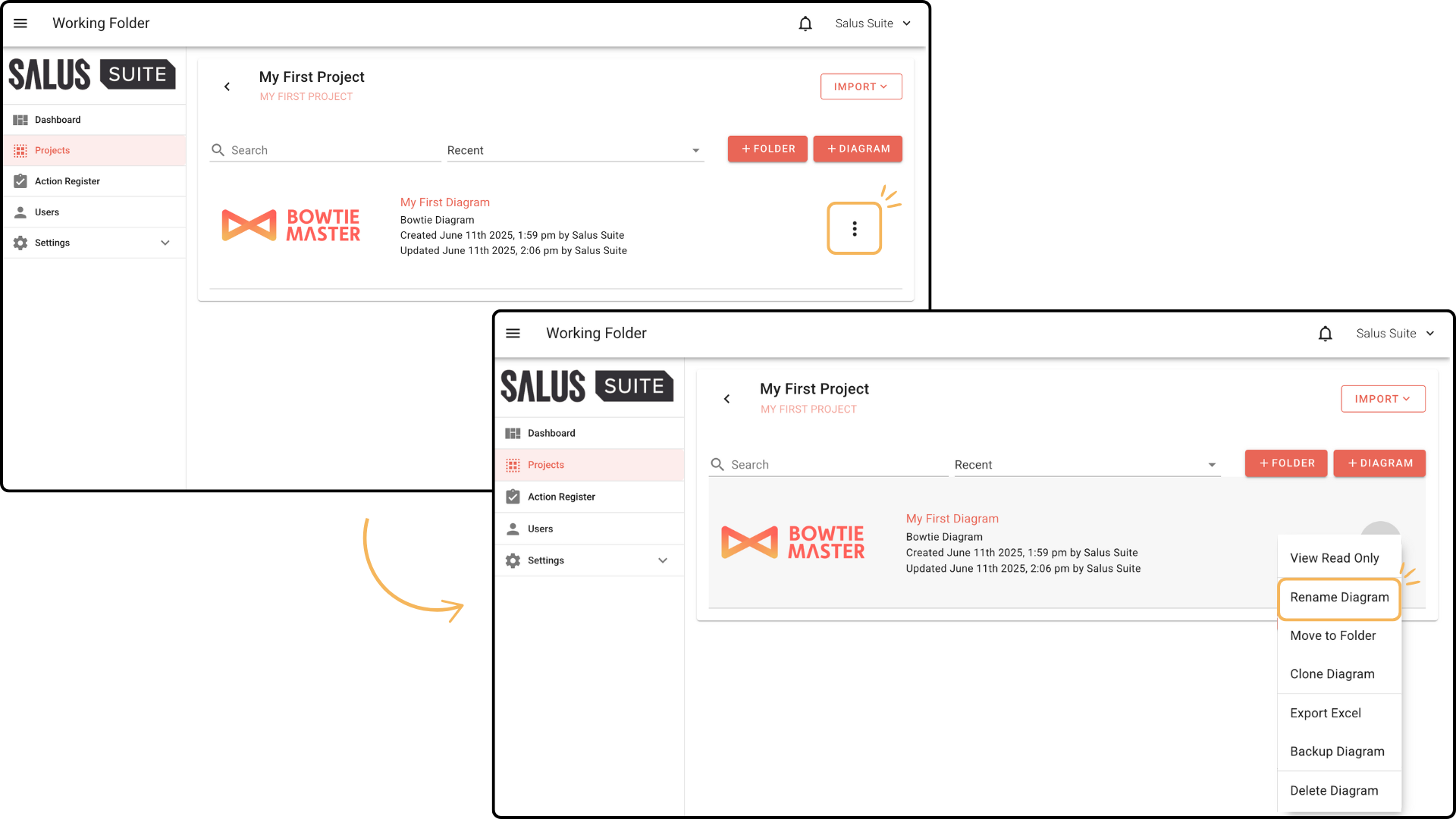
Step 3: Rename the diagram. Click Save. 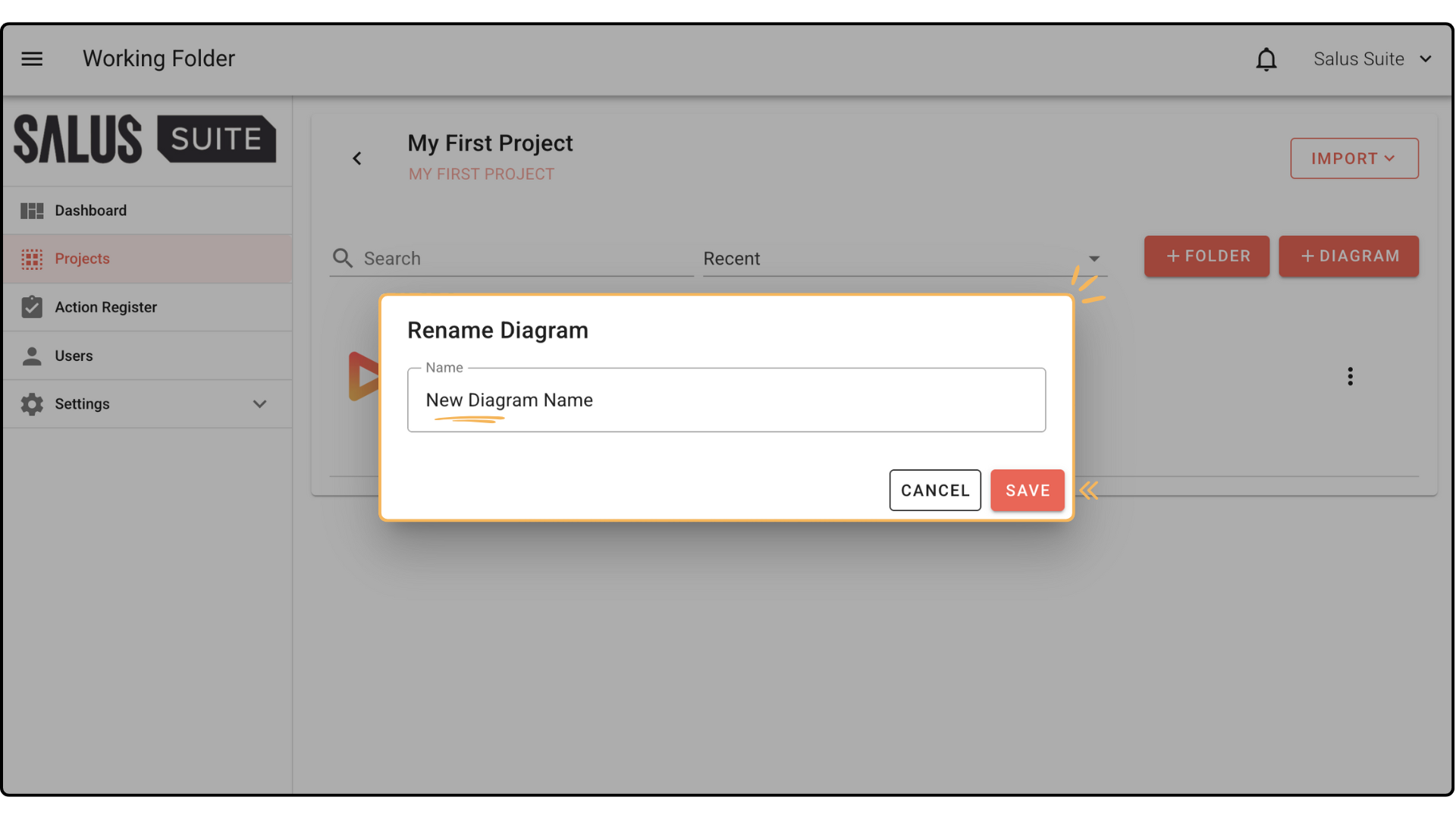
Clone a diagram
Step 1: To clone a diagram, head to the Project Menu. Select the project where the diagram is.
Step 2: Click on the Ellipsis button. In the pop-up, click Clone Diagram.
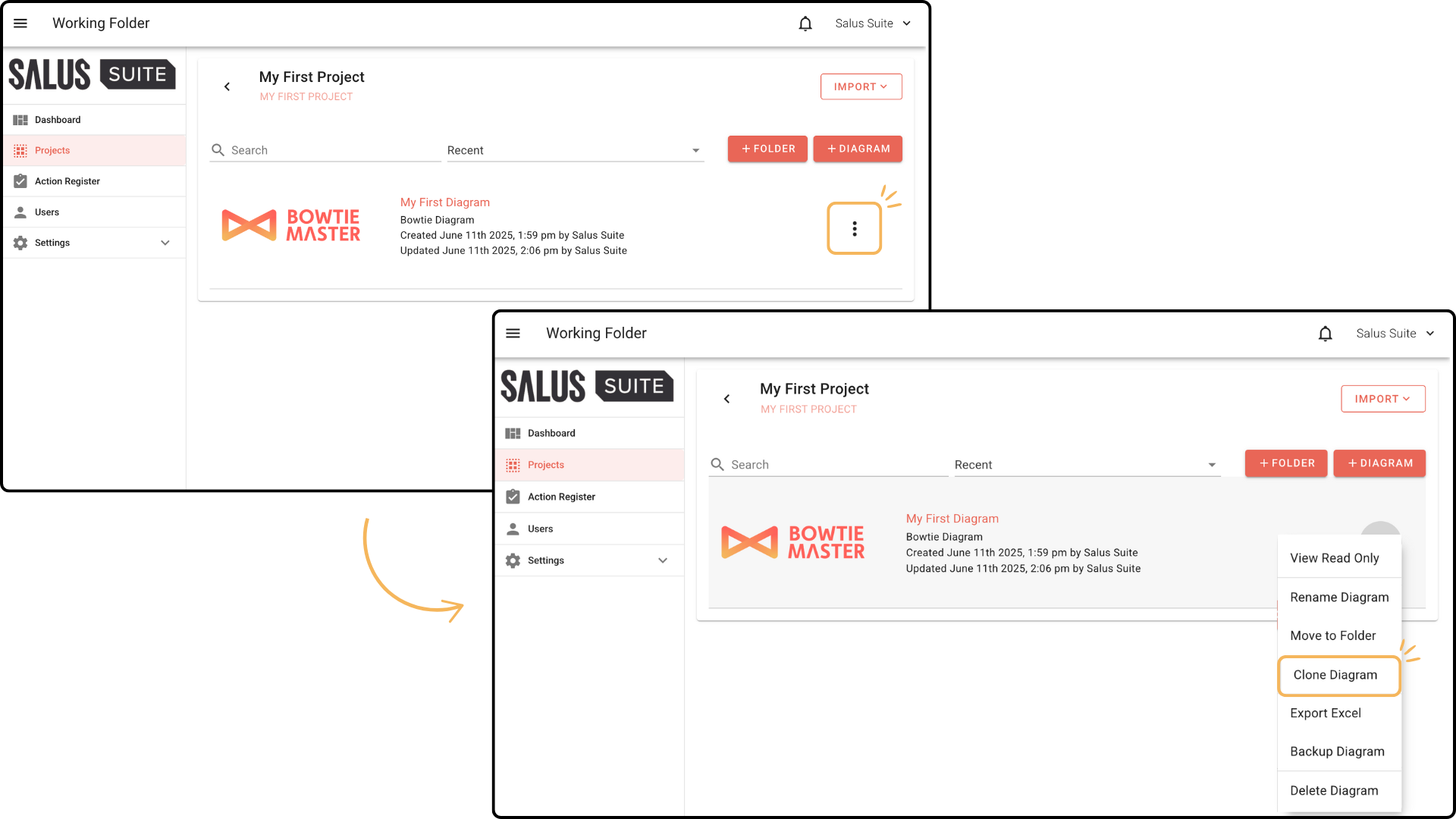
A duplicate of the diagram will be created.
Delete a diagram
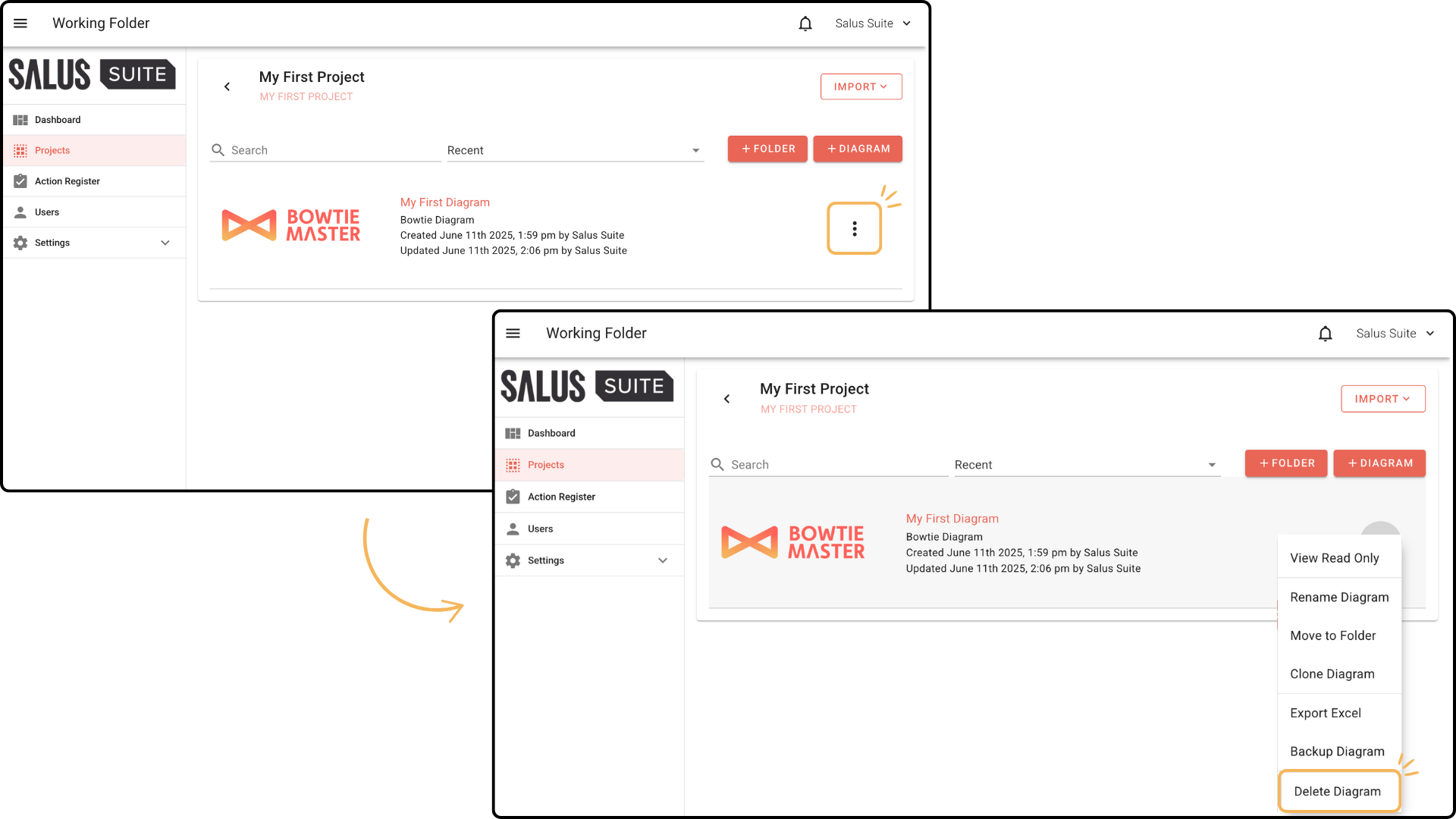
Step 1: To delete a diagram, head to the Project Menu. Select the project where the diagram is.
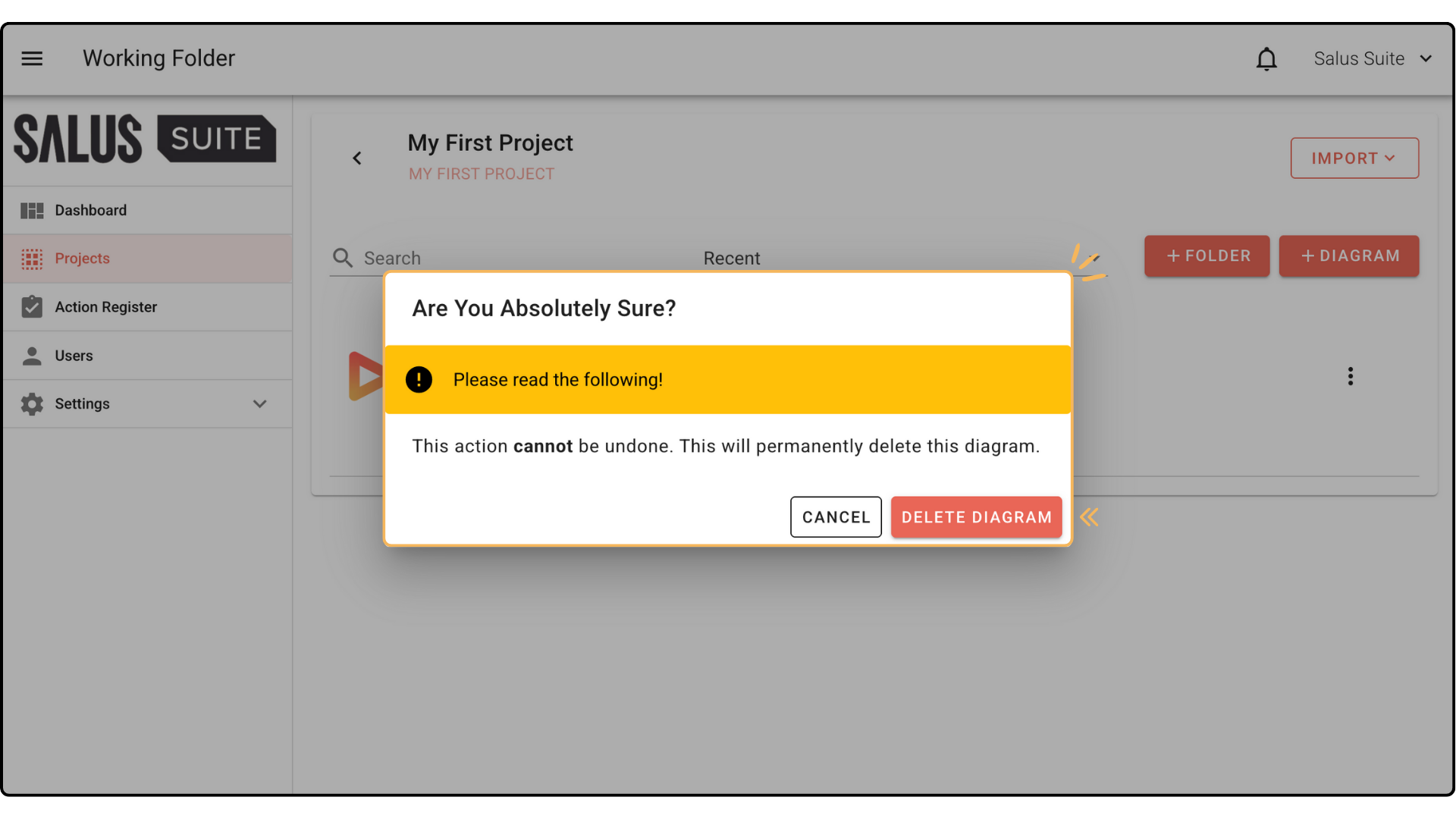
Step 2: Click on the Ellipsis button. In the pop-up, click Delete Diagram.
Step 3: In the warning message, click Delete Diagram. Your diagram will be permanently deleted.