

Diagram risk matrix
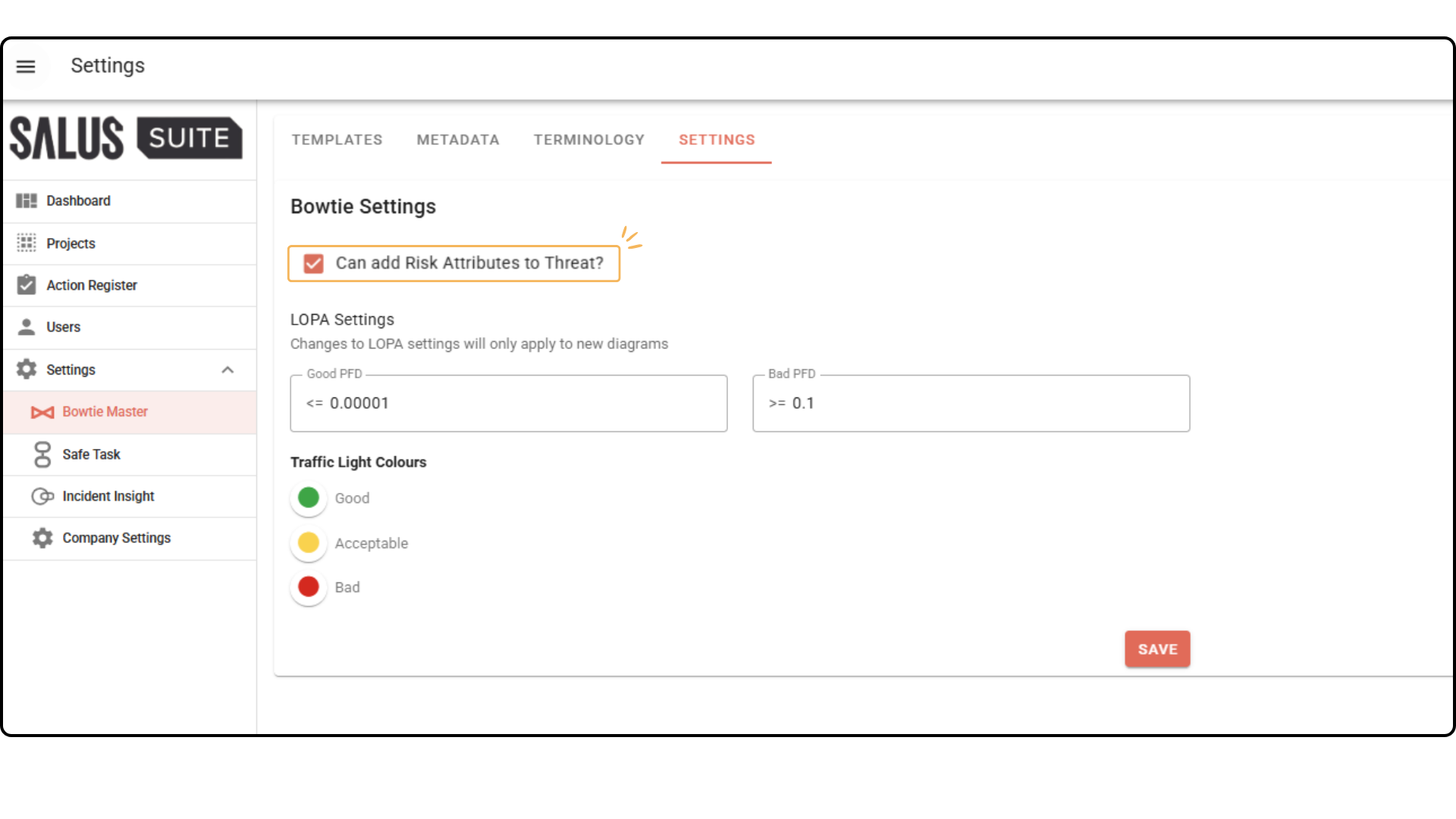
Salus Suite allows users to apply a risk matrix to both the Consequence and Threat elements within a bowtie diagram. By default, the risk matrix only applies to Consequences, but this can be edited within the Bowtie Master settings. All accounts have standardised 5×5 risk matrices applied by default. If you wish to create a new matrix relating to your organisational needs and internal processes, this can also be achieved.
Adding a Risk Value to a Consequence
Step 1: To assess the risk associated with a consequence and add a risk matrix, double-click on the consequence.
Step 2: In the element description box found at the bottom of the Diagram Editor, click (+ADD A RISK ATTRIBUTE). 
Step 3: Choose the type of risk you would like displayed: Initial or Residual risk.

Step 4: Choose from one of our standardised categories, i.e. people, asset, environment or reputation, from the dropdown list. If you have created a custom risk matrix, this will also display in the dropdown options.
Note: If a risk matrix has been created after the date of diagram creation, it will NOT be included as on of the dropdown options for the new diagram. New risk matrices will only apply to diagrams created AFTER they have been saved. For further instruction on how to create a custom matrix, click here.
Step 5: Click on the level of risk associated with this risk category for the consequence that is being assessed. Click SAVE.

In this example, the level of risk for the category selected is People: P and Initial Risk: B4. These values will be displayed on the consequence element.
Note: This whole process is the same when applying a risk matrix to a Threat. 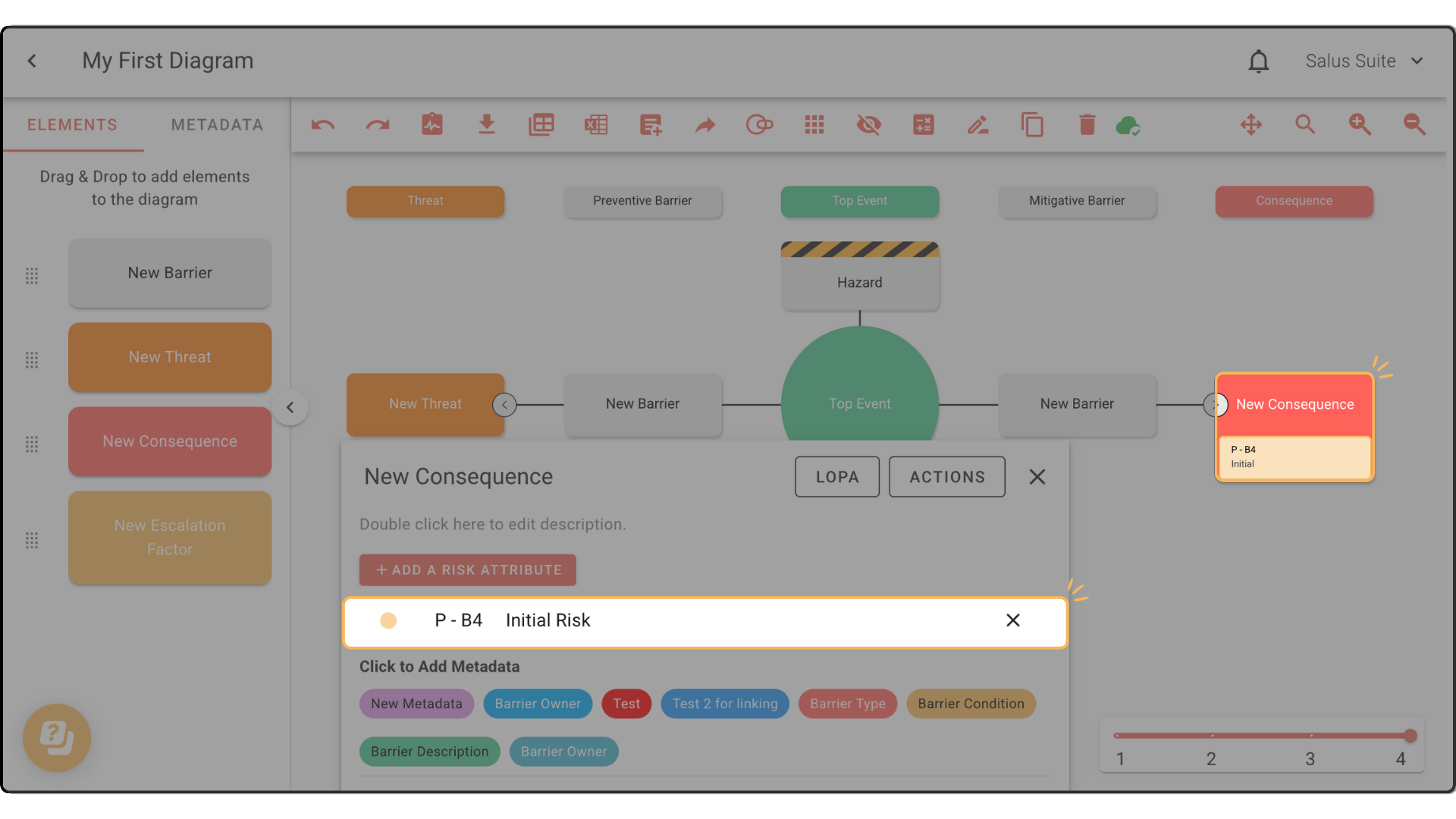
Delete a Risk Category
Step 1: Double-click on the consequence element. Head to the element description box found on the bottom left corner of the Diagram Editor. Click on the ‘X’ button found next to the level of risk you wish to delete.
Note: This whole process is the same when applying a risk matrix to a Threat.

Applying a Risk Value to a Threat
As mentioned previously, risk matrices can be applied to both Consequences and Threats within Bowtie Master. As default risk matrices are available to apply to the Consequences, but need to turned on for the Threats. Doing this is simple, just follow the below steps.
Step 1: Navigate to the Settings drop down on the left side menu
Step 2: Select Bowtie master and SETTINGS in the top tool bar.
Step 3: Tick the box next to (Can add Risk Attributes to Threat)
Note: Once this box is ticked, risk matrices and their values will be available on all threat elements, across both new and old diagrams.