
Diagram Metadata
Metadata allows you to record additional information on your diagram elements. This information could include the barrier type, barrier condition, barrier owner, barrier location, and more. In this guide, we’ll show you how to create, add, delete, edit, and link metadata within a diagram.
Creating new metadata within a diagram
Note: New metadata created within a diagram will only apply to that diagram. More standardized metadata changes need to be carried out in the Bowtie Master Metadata Settings.
Step 1: To create a new metadata category, head to the Metadata Menu on the left-hand side of the diagram. Click +METADATA.
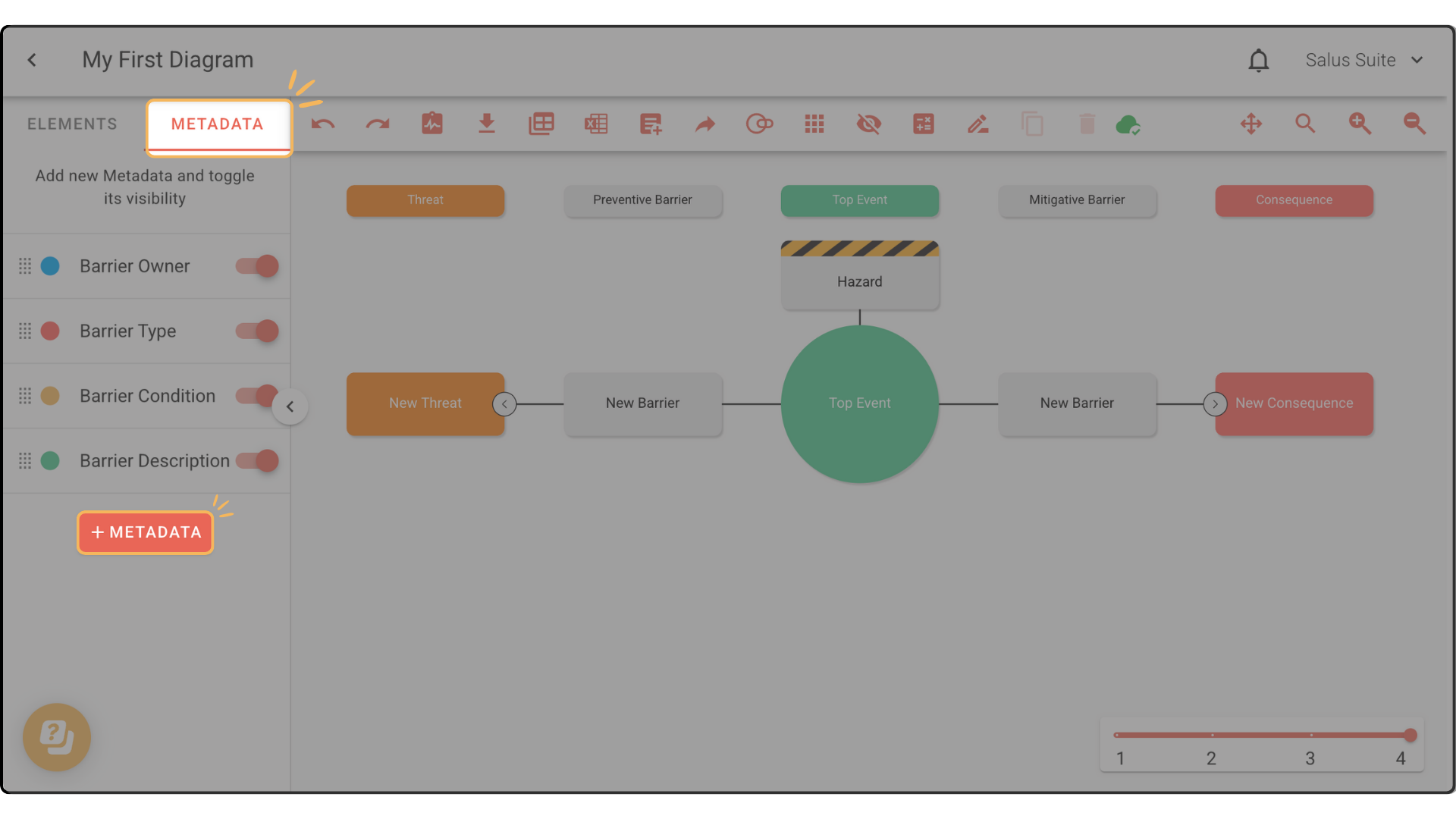
Users can create two types of metadata:
- Free Text Metadata: allows users to type up to 500 characters into the metadata block when applied to an element
- Dropdown Metadata: allows users to apply metadata to elements in a more standardised format, selecting from pre-made options.
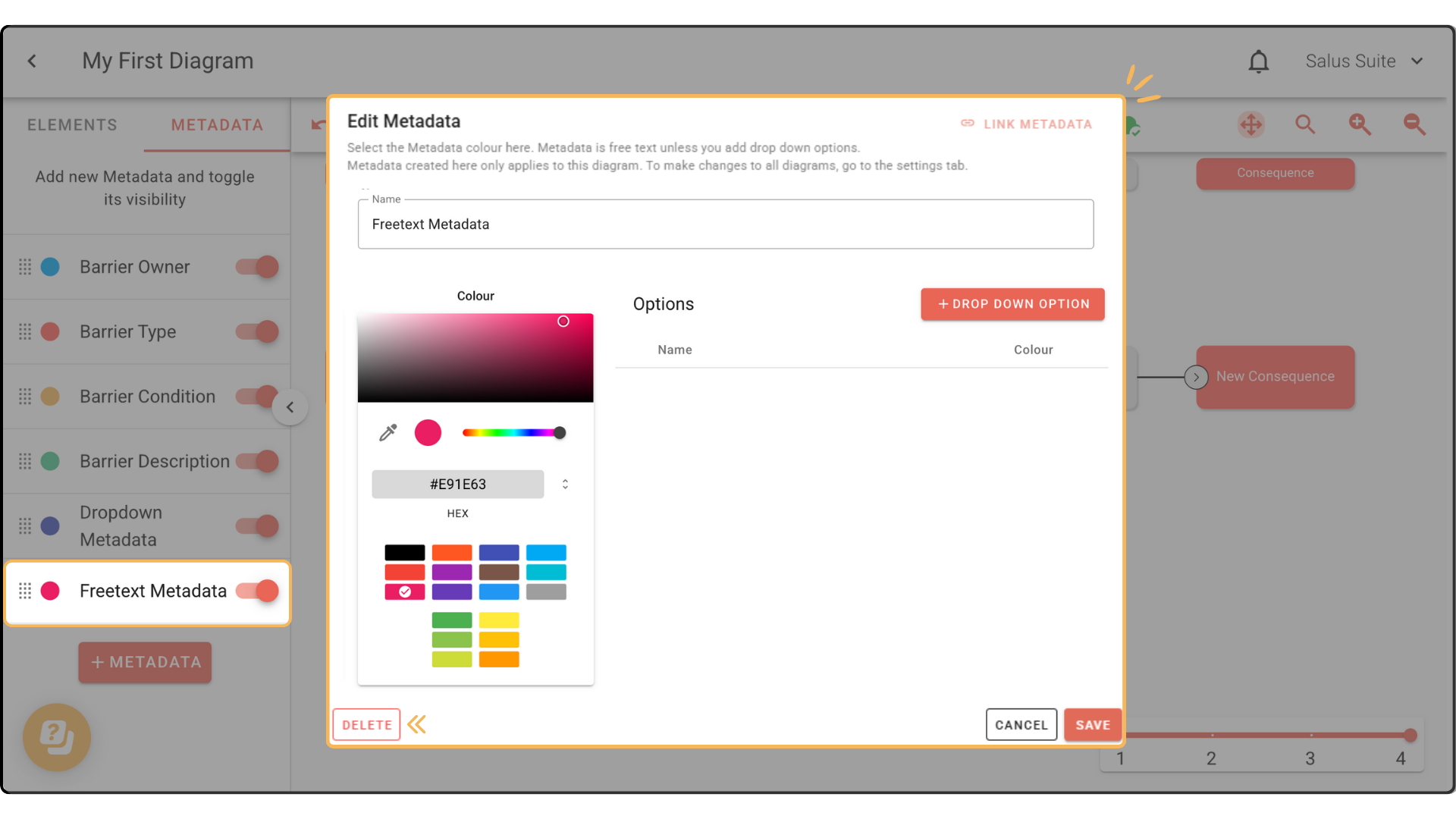
Step 2: (Free Text Metadata) In the pop-up, enter a Metadata name and assign a colour using the dropper tool, HEX code or pre-select option. Click SAVE. 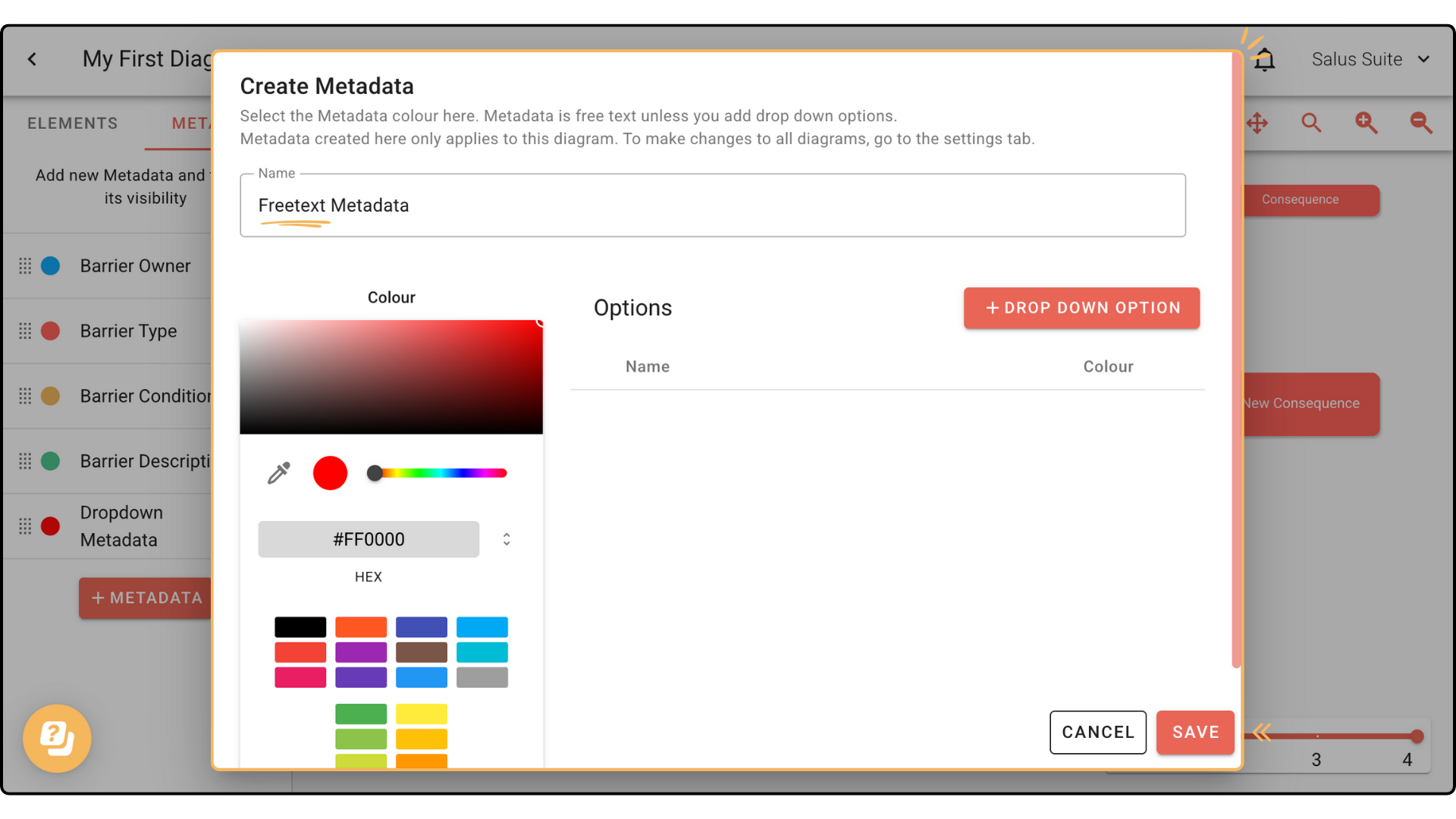
Step 2: (Dropdown Option Metadata) In the pop-up, enter the Metadata name and assign a colour to the metadata. Click +DROP DOWN OPTION on the right-hand side, assign a name and colour for each drop-down option created. Remember, you can use the dropper tool, HEX code or pre-select option. Click SAVE.
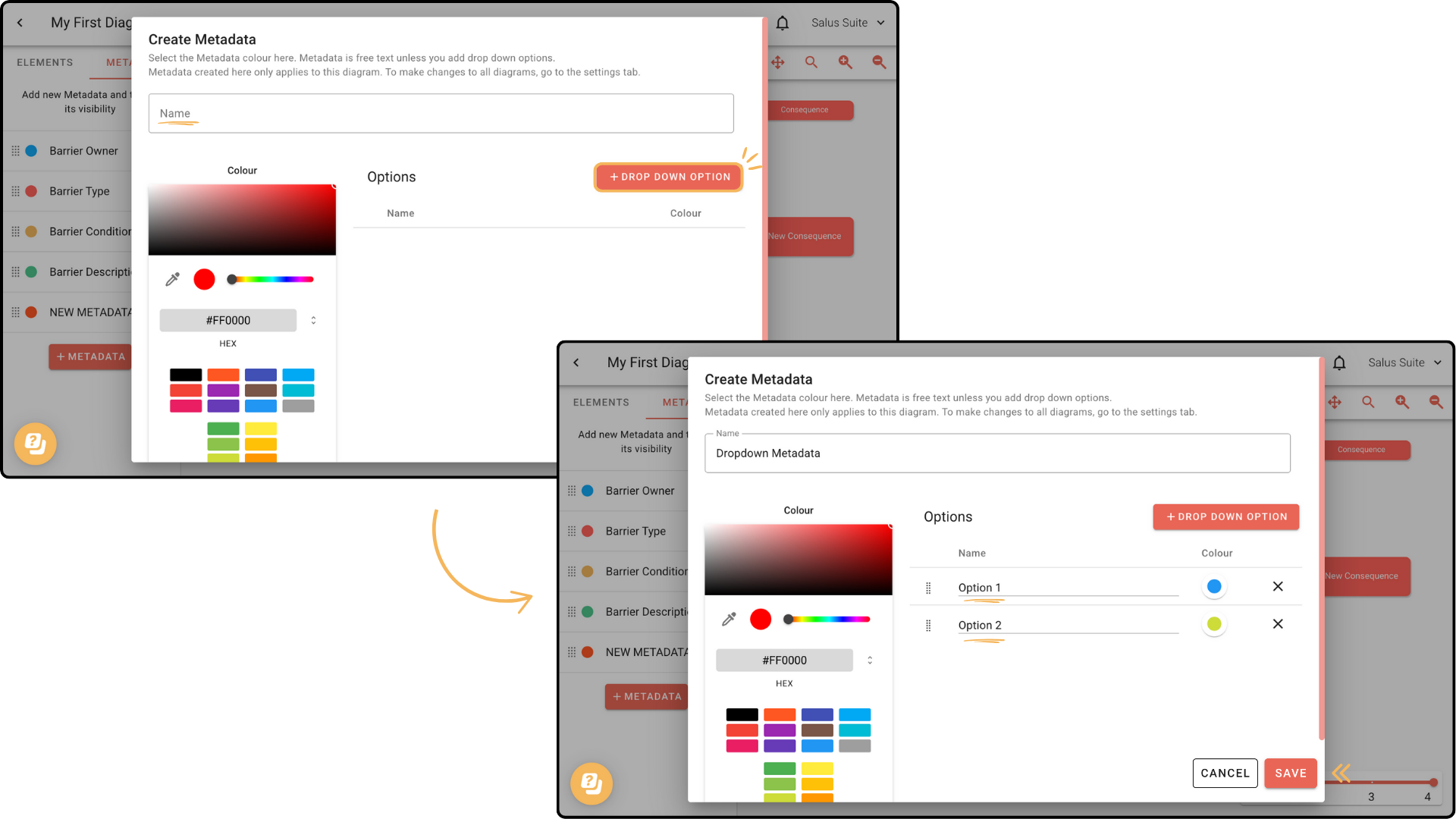
The newly created metadata will appear in the Metadata Menu.
Adding metadata to an element
Step 1: Double-click an element you wish to add metadata to.
Step 2: In the Element Description Box, assign the metadata you wish to add to the element. 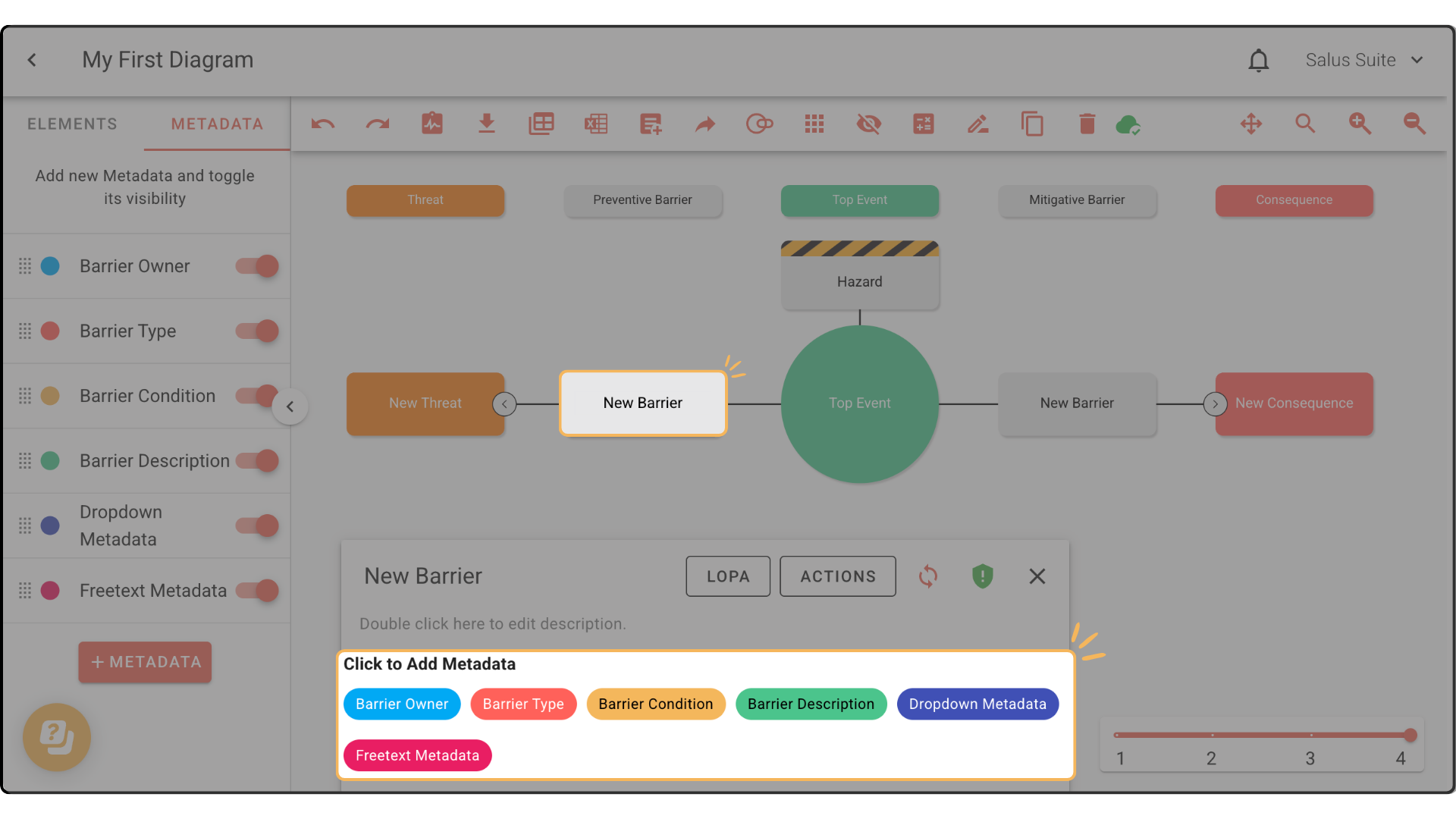
Step 3: The selected metadata will appear in the element.
NOTE: If you wish to attach documents or websites to metadata, you can do this with a hyperlink.

Deleting metadata within a diagram
Step 1: To delete metadata within a diagram, head to the Metadata Menu. Click the Metadata you wish to delete.
Step 2: In the Edit Metadata pop-up, click DELETE.
Step 3: A warning message will pop up. Click Delete. This will permanently delete metadata within the diagram.
This will remove the metadata from both the side menu and from any elements it has been assigned to on the diagram.
If the metadata in the sidebar is standardised and set in the Bowtie Master settings, “LINK METADATA” in the top right-side side of the Edit Metadata window will display as “UNLINK METADATA”. Click to unlink, DELETE option will then show.

Deleting metadata from an element
Step 1. On the diagram, select which element with metadata you wish to delete.
Step 2. In the pop up the metadata assigned will show, press the X displayed next to the hyperlink.
Linking and Unlinked metadata
When viewing a diagram, metadata can either be linked or unlinked.
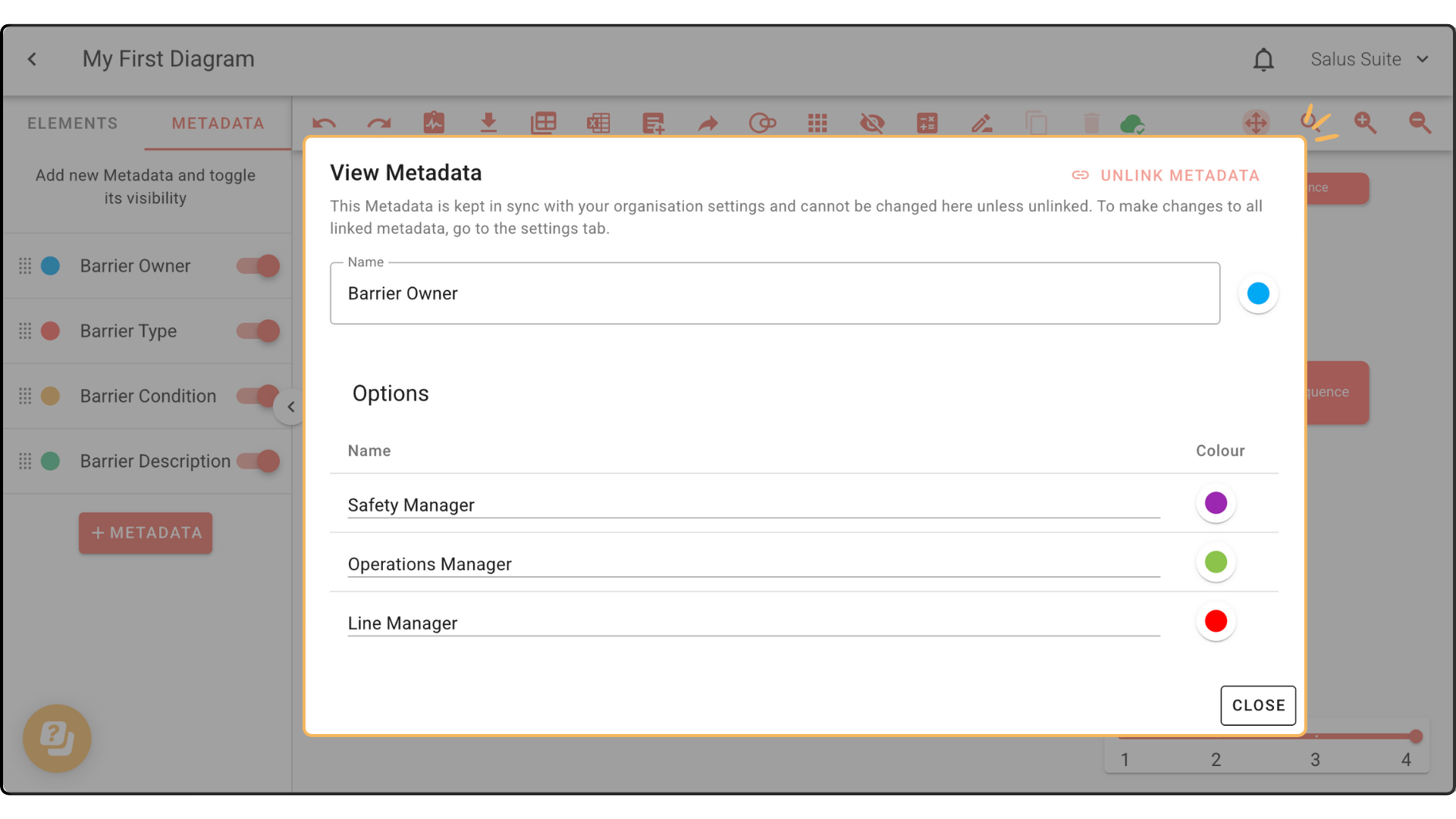
- Linked metadata (shows “Unlink Metadata”) is synced with your organisation’s Bowtie metadata. It cannot be edited directly within the diagram.
- Unlinked metadata (shows “Link Metadata”) is specific to the individual diagram. It can be edited freely and tailored to that diagram, but it is not synced with the company metadata.
If you find yourself repeatedly creating the same metadata across multiple diagrams, consider linking it for consistency.
Step 1: To unlink metadata, click on the metadata. Click UNLINK METADATA. Changes made are not local to the diagram. 
Step 2: To link metadata, click on the metadata. Click LINK METADATA.
This will give you the option to link to the metadata options created in the organisation’s Bowtie metadata settings. 
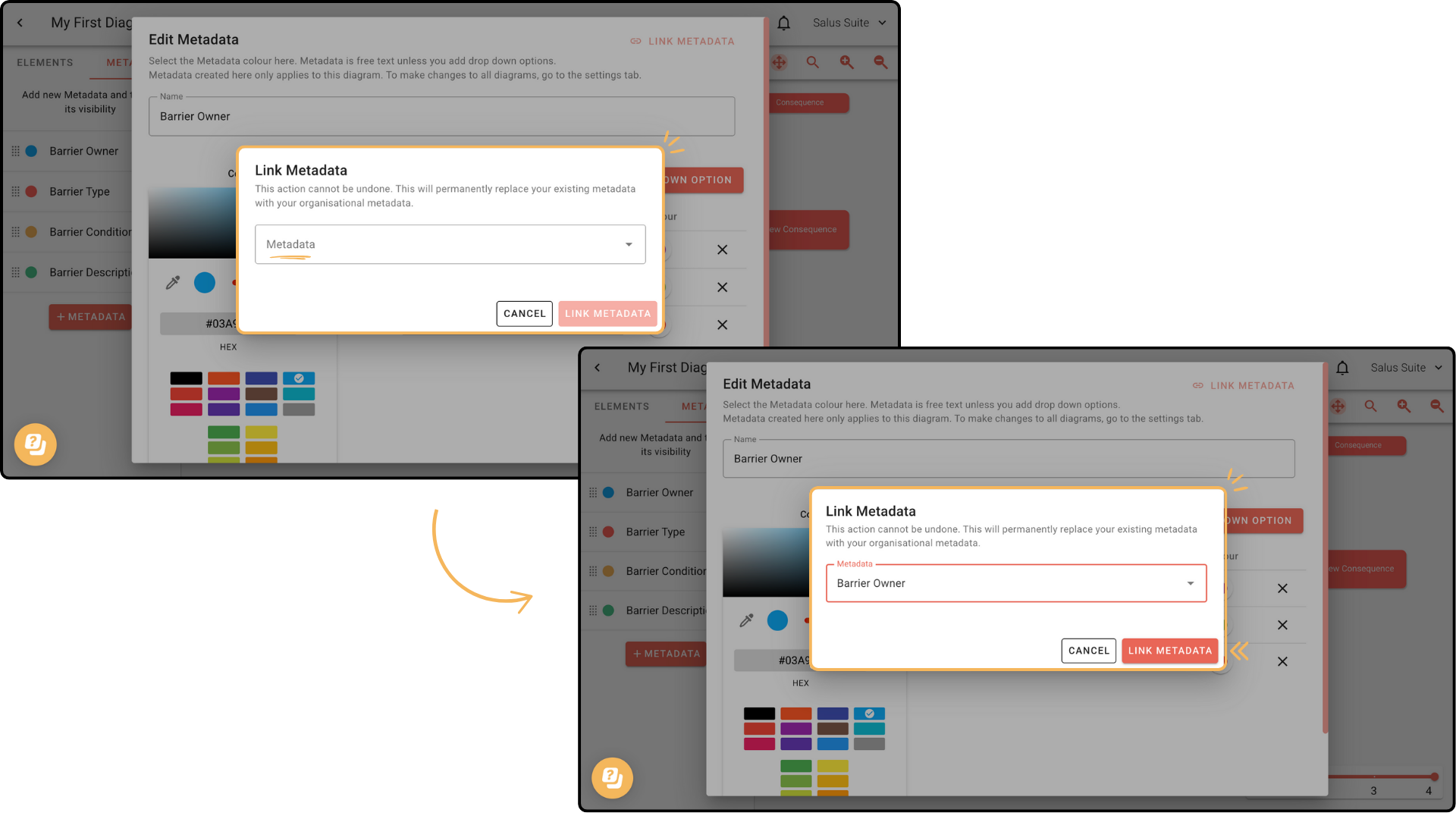
Step 3: In the Link Metadata pop-up, select the metadata from the drop-down menu. Click LINK METADATA.
The metadata is now synced with the company Bowtie metadata and cannot be edited directly:
Relinking Metadata
Step 1: In the Metadata Menu, click on the metadata you wish to relink.
Step 2: Click Link Metadata.
Step 3: Choose the metadata you wish to link to from the drop-down menu. Click Link Metadata.
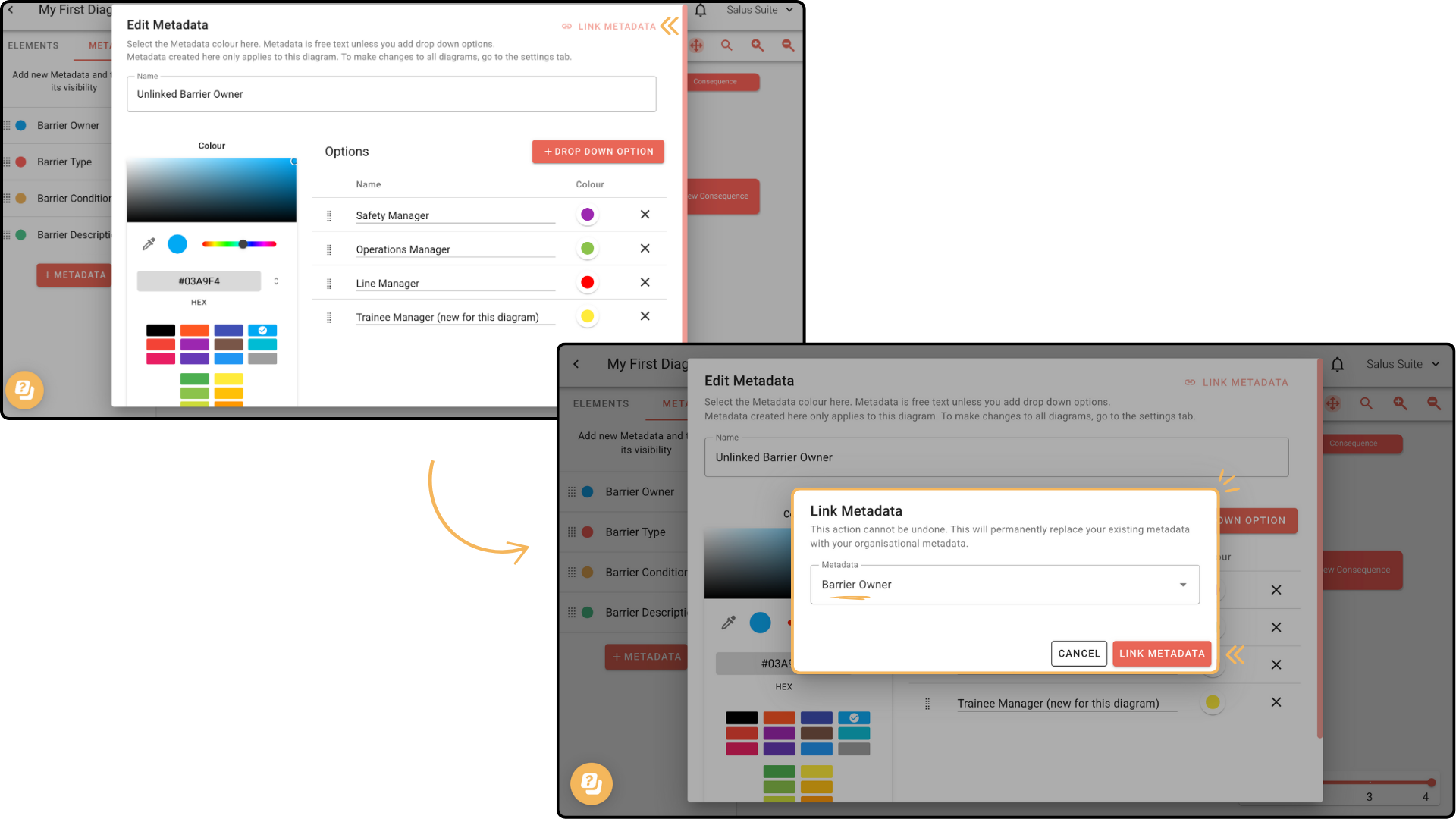
The metadata will now link to the company metadata.
Here is a side-by-side example of what happens if you re-link a metadata. In this example, we edited the metadata’s name and added a dropdown option (see left photo with underline). When linked, it will sync to the company metadata.
Editing metadata
Note: When you create a new diagram, all metadata is linked by default from Company Metadata Settings.
Step 1: Click the metadata you wish to edit. If the metadata is linked to the Company metadata, click UNLINK. If the metadata is unlinked, proceed to Step 2. Step 2: Make your changes, then click SAVE. For this example, we renamed the diagram and added a dropdown option.


