
Create and Edit a Risk Matrix
Salus Suite comes with the PEAR model as the default risk matrix, but you can customise or add new matrices to suit your internal standards.
Create a Risk Matrix
Step 1: To access the Risk Matrix settings, head to Settings > Company Settings > Risk Matrices.
Step 2: Click + Risk Matrix. 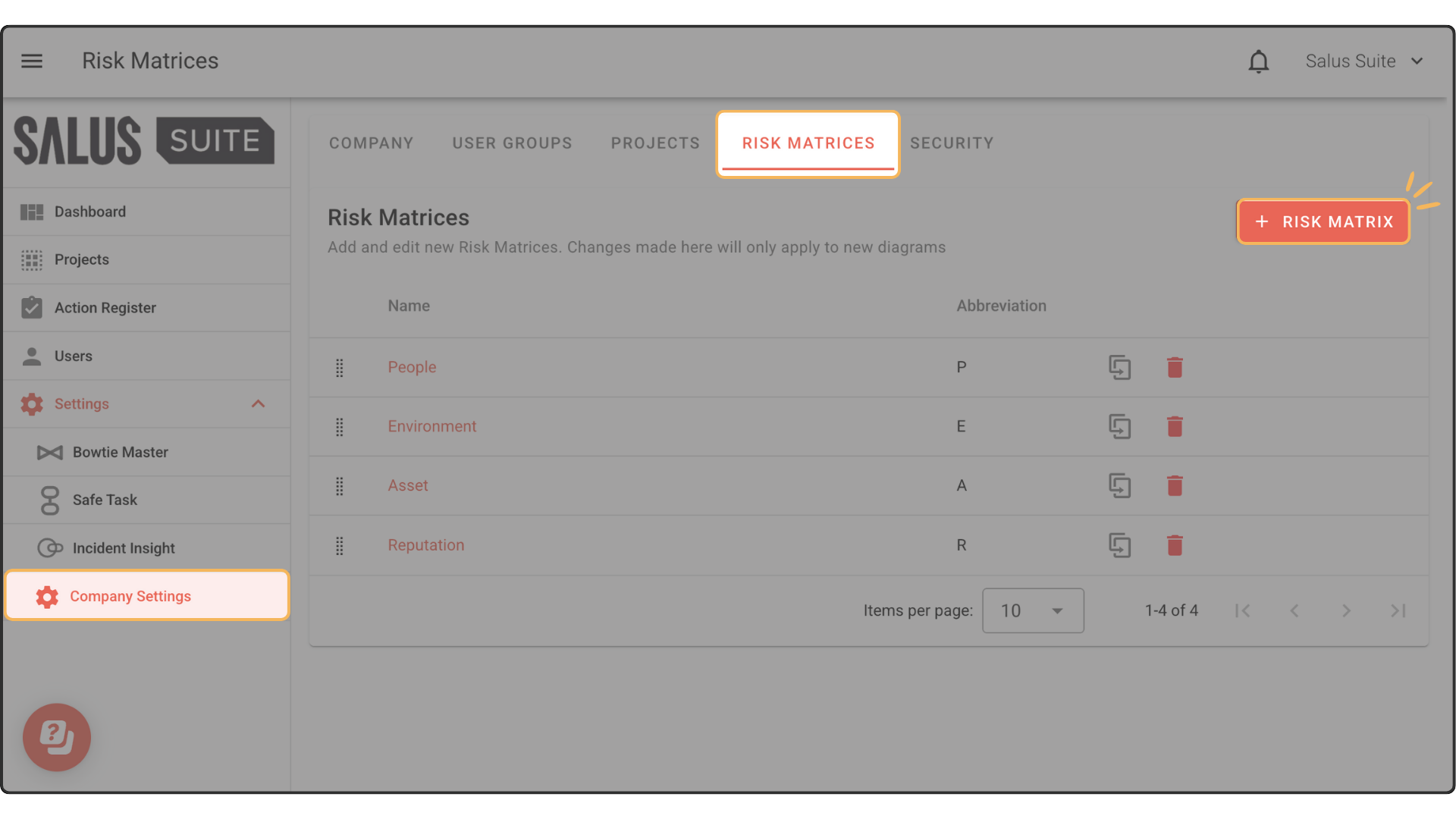
Step 3: Enter a Name and Abbreviation. Click Save.

Edit a Risk Matrix
Step 1: Select a Risk Matrix. Step 2: Change the Name, Abbreviation, X-Axis Label, and Y-Axis label here. Click Save.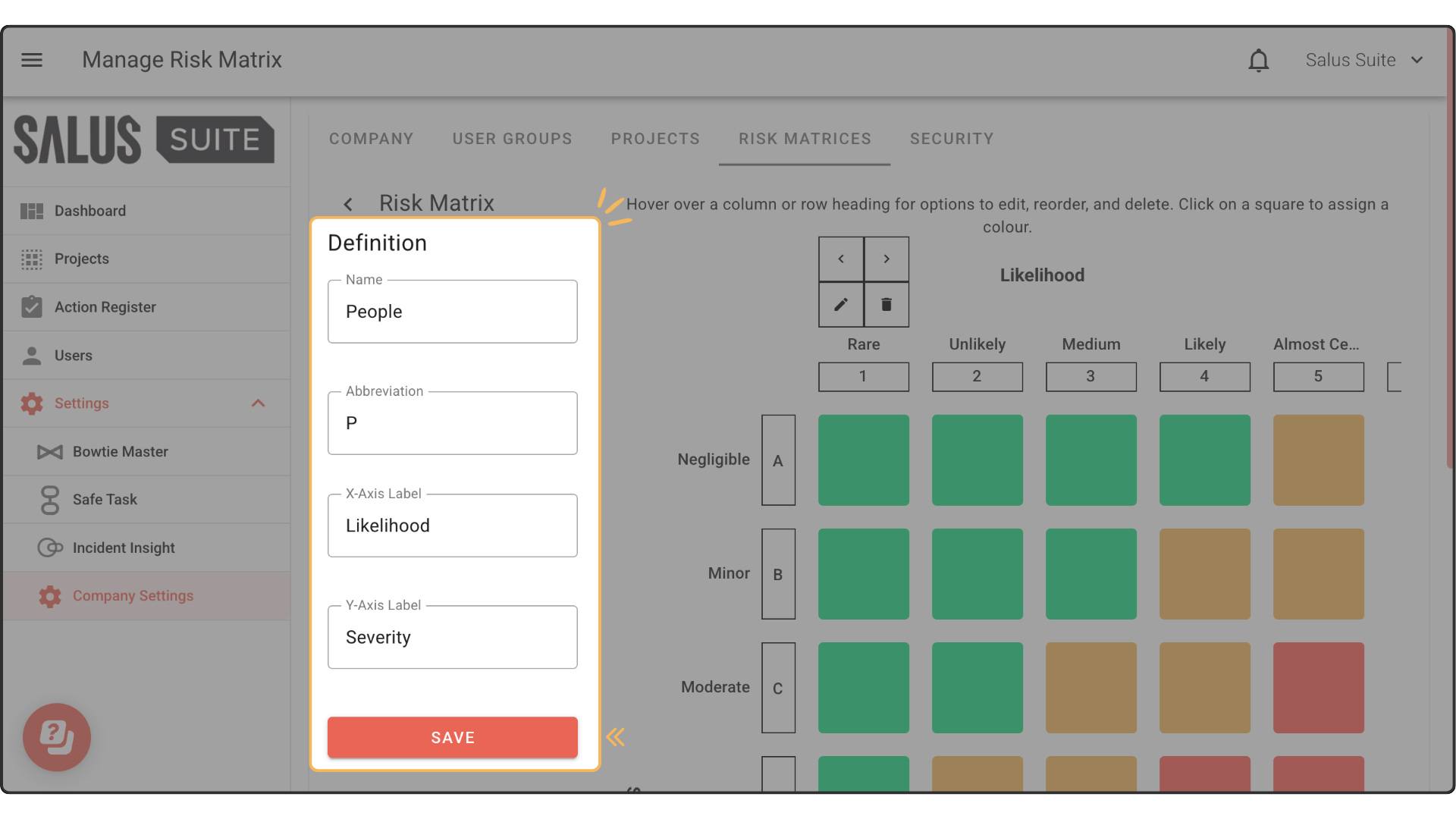
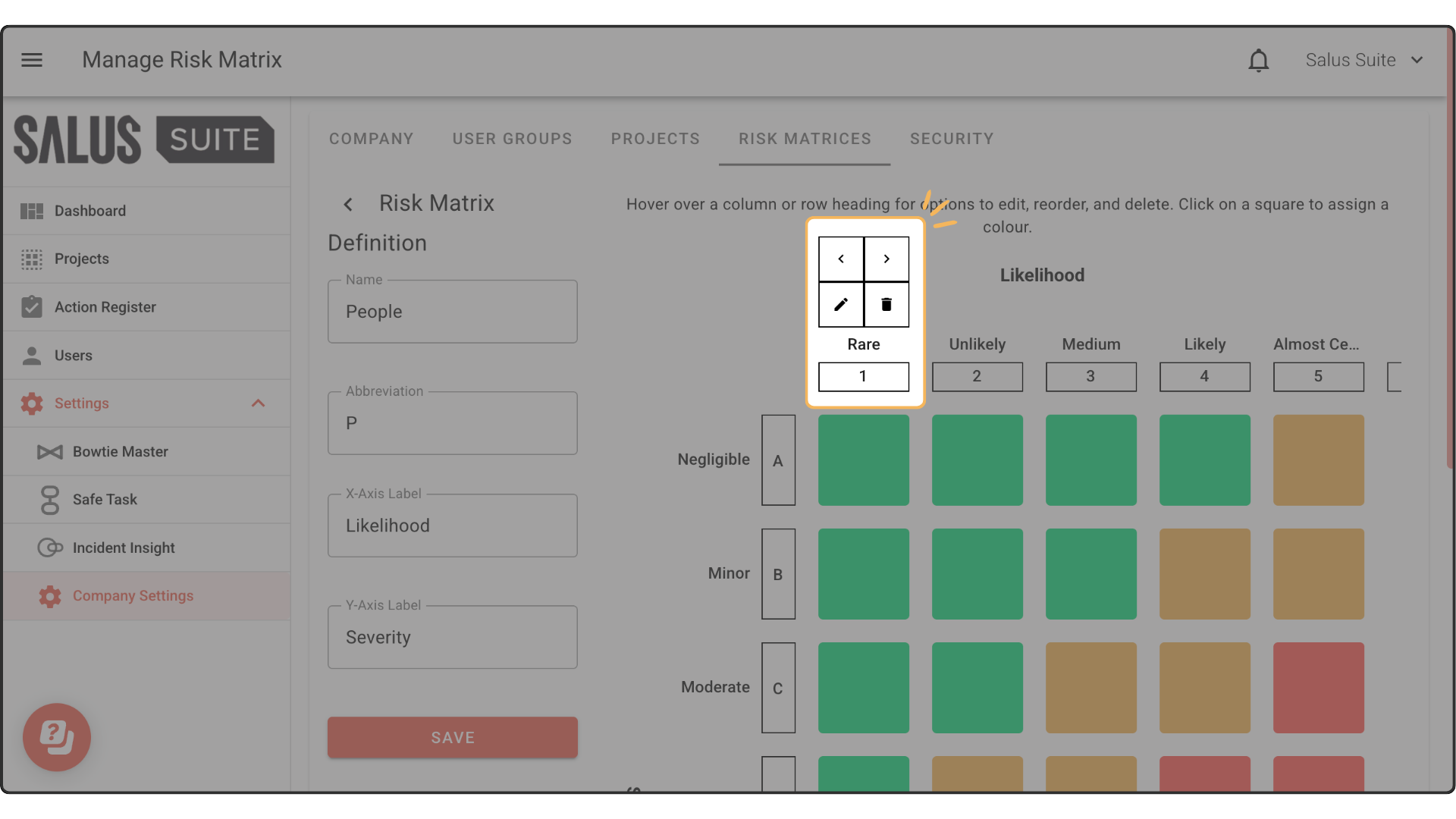
Step 3: Hover over a column or row heading. Options to edit, delete, and rearrange will appear.
Step 4: To edit a likelihood, click on the Pencil tool. Edit the Name and Abbreviation in the pop-up, then click save. 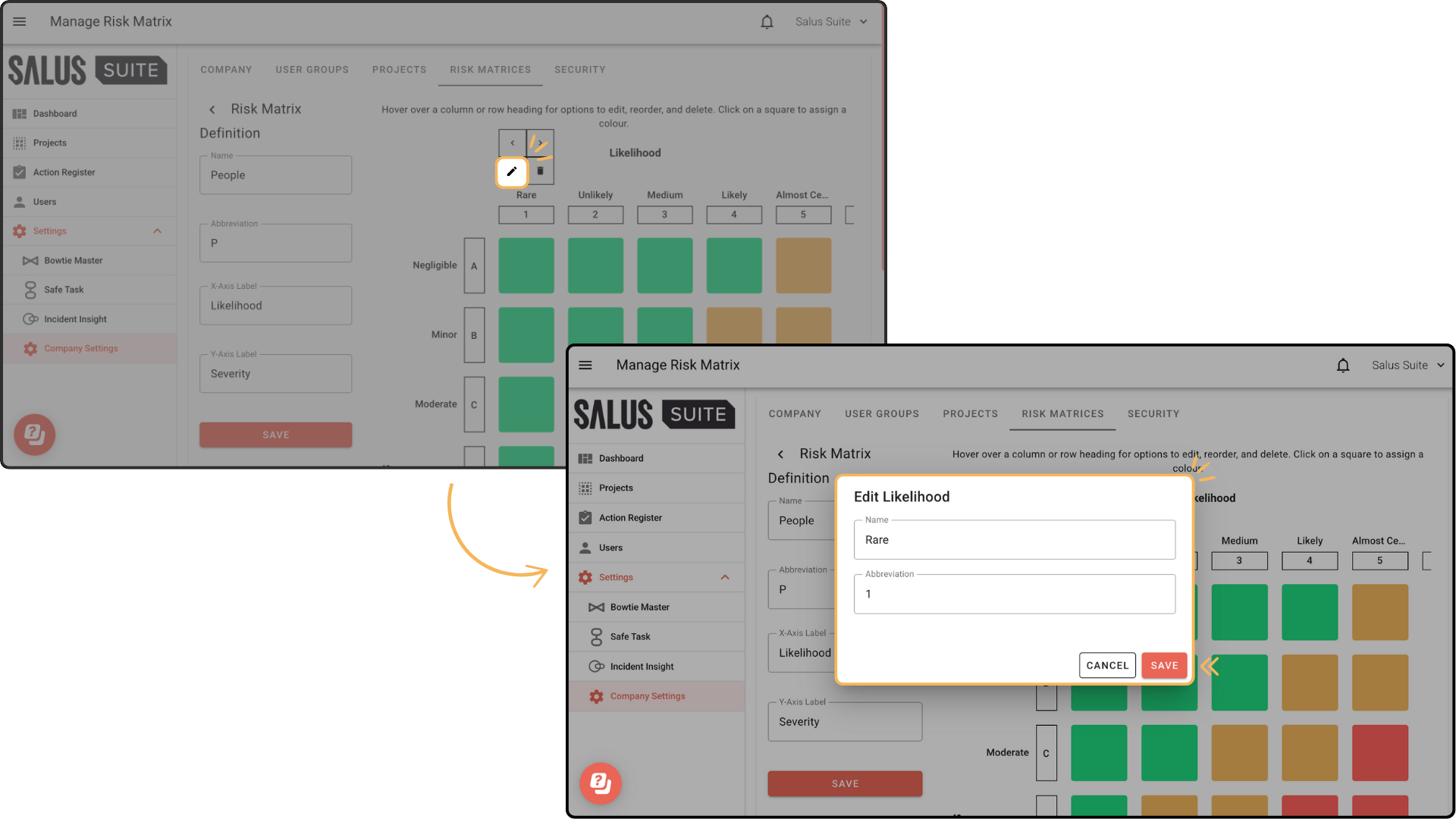
Step 5: To change the order of the row or column, click the directional arrows. The row or column will then move in the direction you selected. 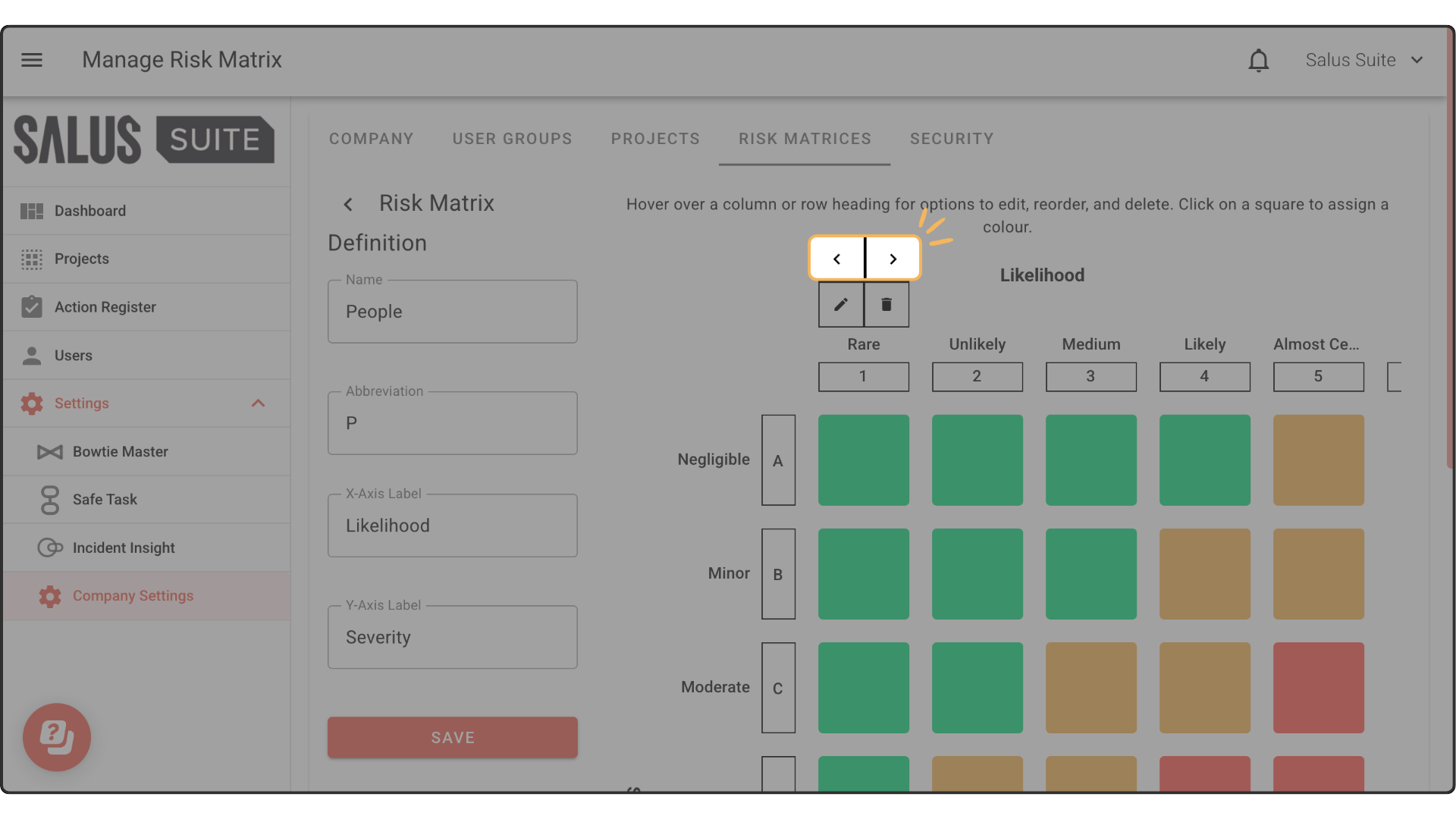
Step 6: To delete a row or column, click on the Bin Icon. In the warning message, select Delete. 


