Diagram Templates
In Bowtie Master, you can create custom templates to help kick-start diagram creation across your team, speeding up the process. Templates are easy to create; this simple guide shows users how to create, edit, access and delete a template.
Note – Information stored in a template overrules the Bowtie Master settings. Settings are only available to Organisational Admins on the system.
Create a Template
Step 1: Access Bowtie Master and start building out your template. This could be building a bowtie diagram or simply adding select metadata into the left side menu.
Step 2: Once happy with the template content, click (Save as Template) in the toolbar.
Step 3: Give the template a name and click Create. If you wish for the template to be used as the master template, tick the Master checkbox. 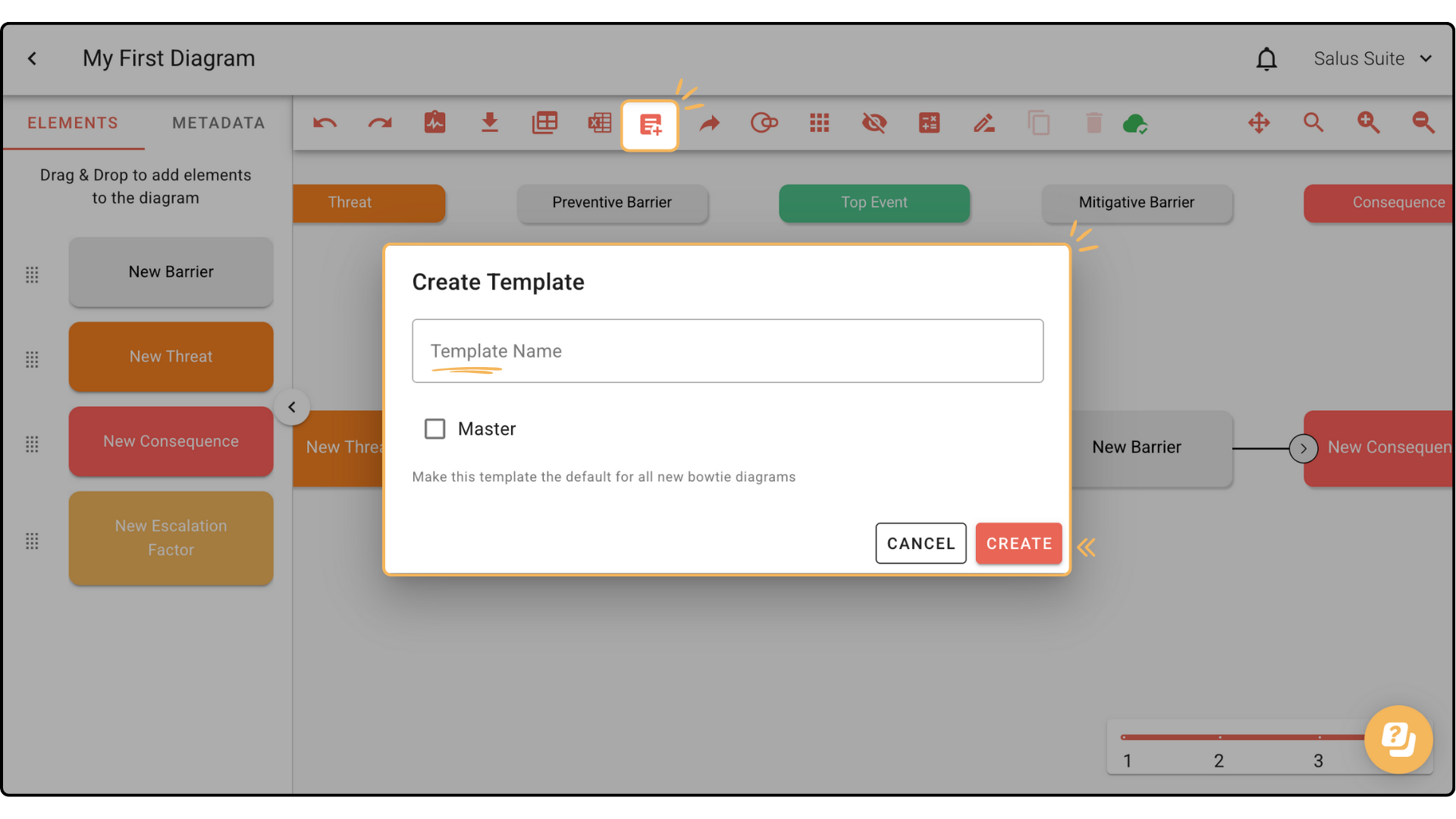
Once the template has been created, it can be accessed by other users in the organisation’s Bowtie Master account. Learn how to add a new user here.
Editing A Template
Once a template has been created it cannot be directly edited. To update a template, you will need to create a new bowtie diagram and assign the template you wish to edit.
Step 1: In the diagram builder make the necessary changes and save as a new template. To identify the new from the old template save with a number after the title.
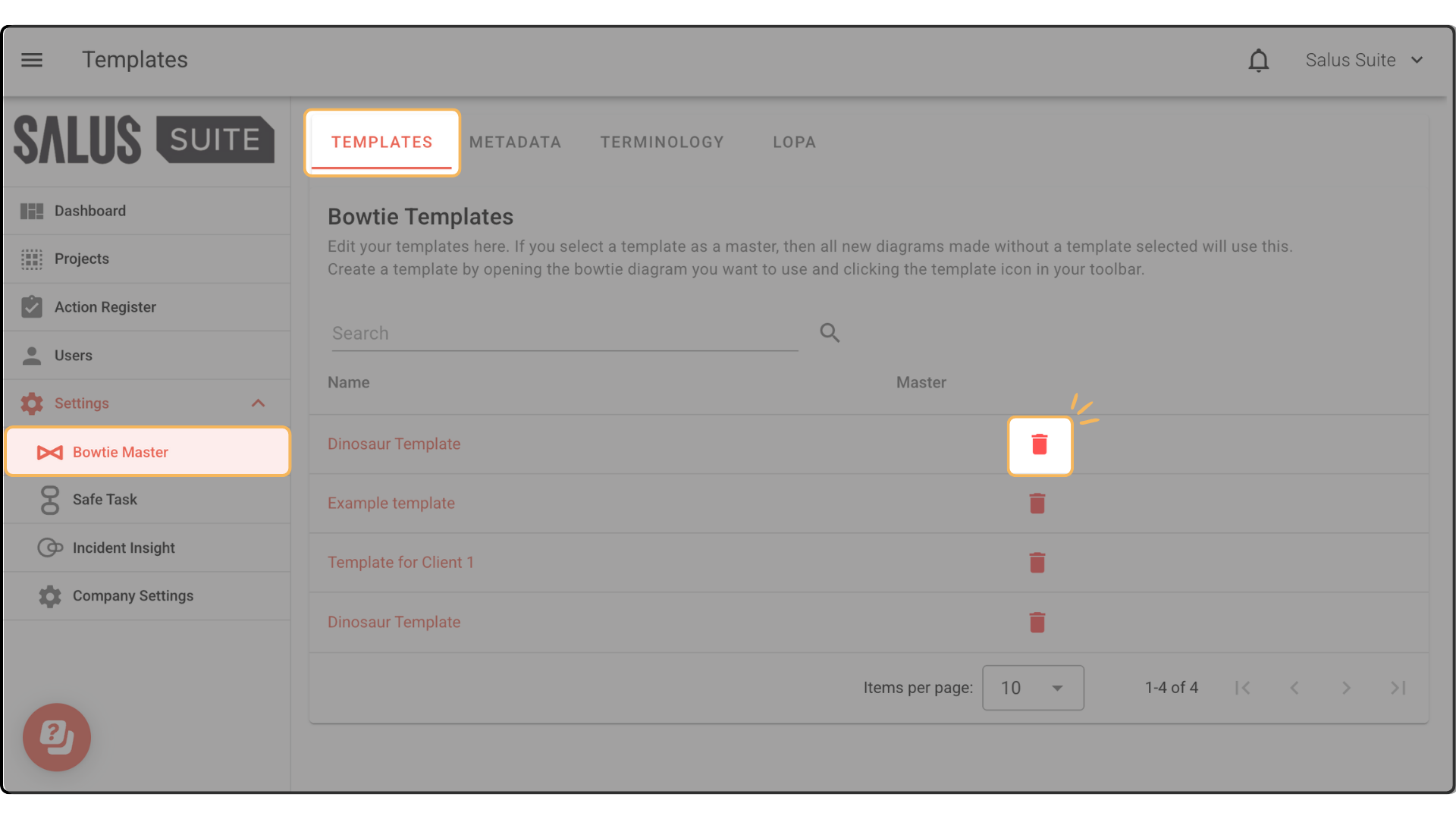
Step 2: In the main bowtie settings (only accessible by Organisation Admins) you will be able to see a list of all the templates created within your account, delete the old template leaving the new template.
Step 3: To edit the template name simply click and type, i.e. this could be removing the number from the new template title after you have identified and deleted the older template.
Step 4: The new template should now be available to use and assign when creating new diagrams.
Accessing a Template
Step 1: A template, once created can be accessed when creating a new diagram. Head to the Project Menu. Click on (+ New Diagram) and enter a new diagram name. In the Template drop-down menu, select the template you wish to use, then click (CREATE). 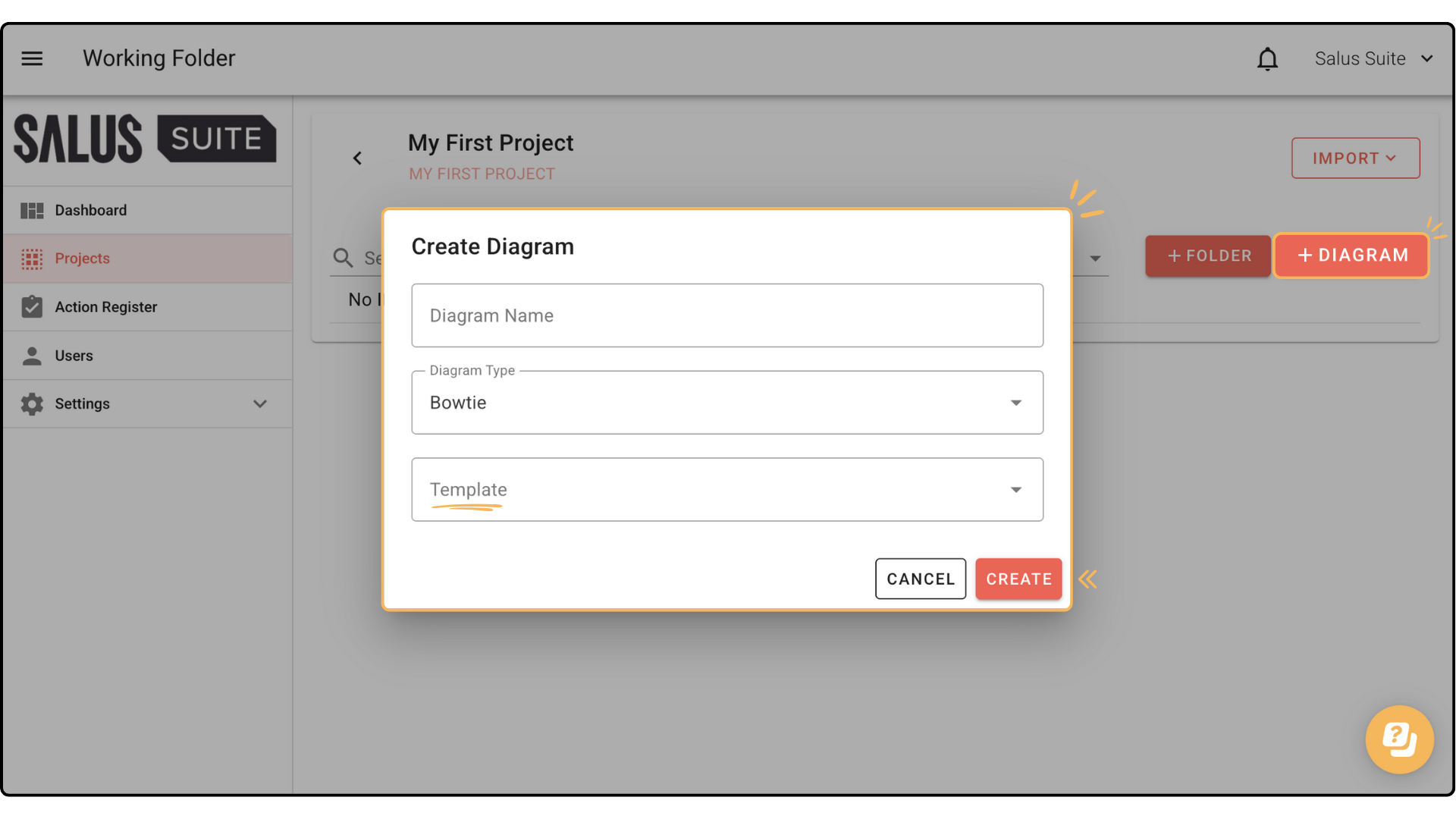
Delete a Template
Once a template has been created, it is stored in the Bowtie Master Settings. A template can only be deleted by Organisation Admins.
Step 1: To delete a template, go to Settings > Bowtie Master > Templates.
Step 2: Click the Bin icon beside the template you wish to delete.