

Assign actions with Action Register
Effortlessly assign, track, and manage tasks with the Action Register. This feature enables you to assign actions to team members, set priorities, and monitor progress, ensuring accountability and streamlined collaboration within your projects.
Creating new actions
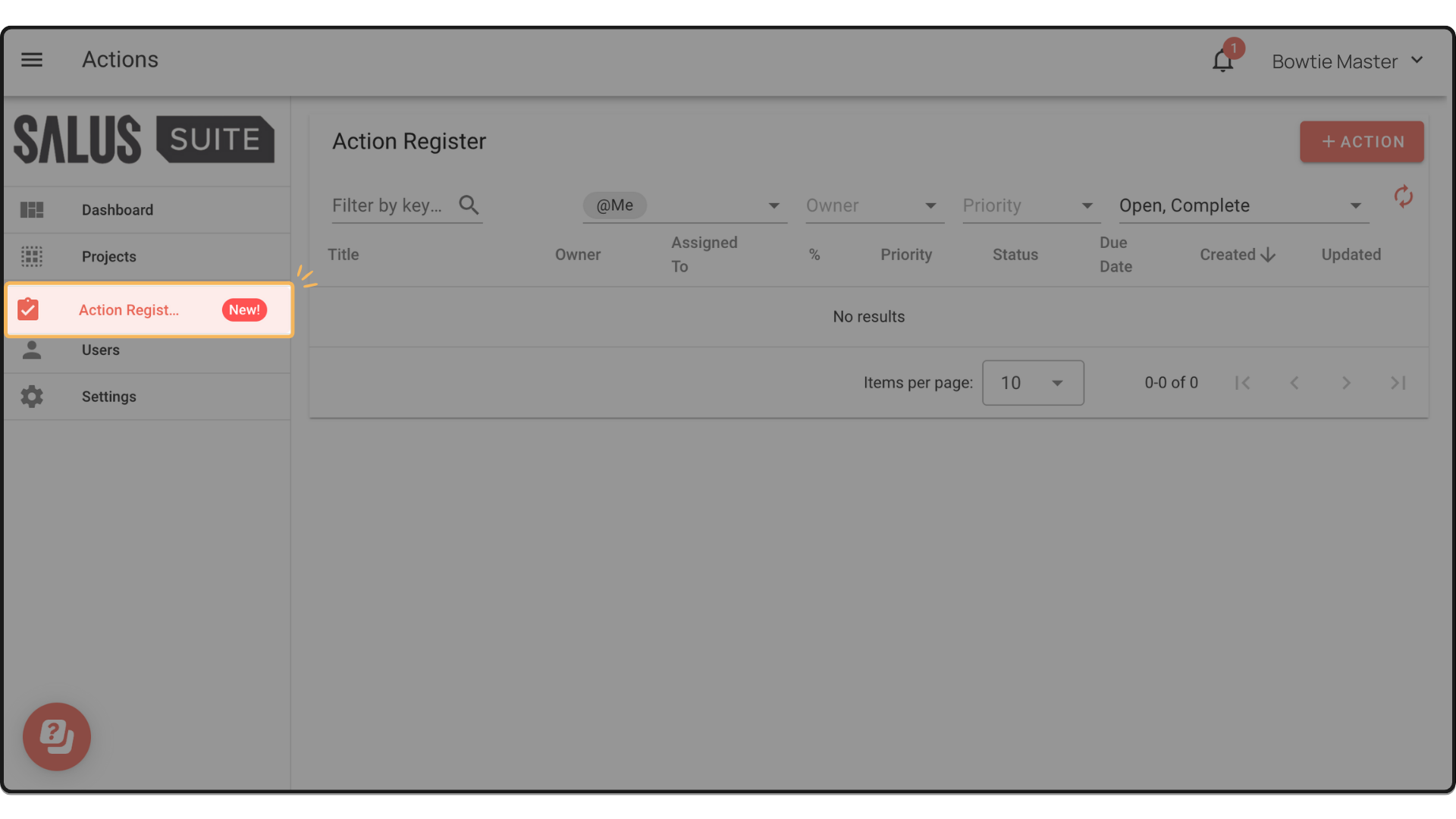
Step 1: Head to the Actions Register Menu on the left-hand side.
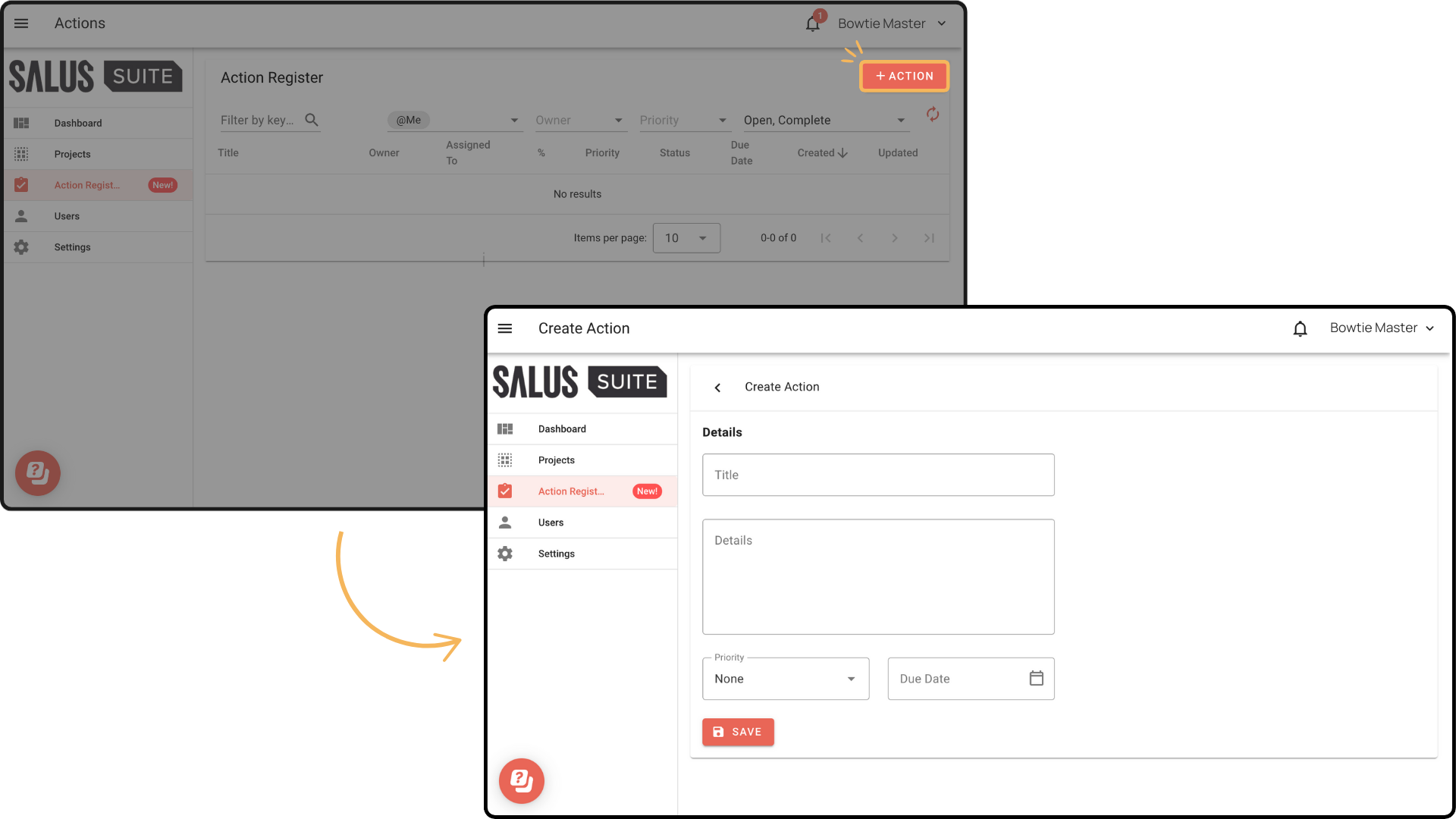
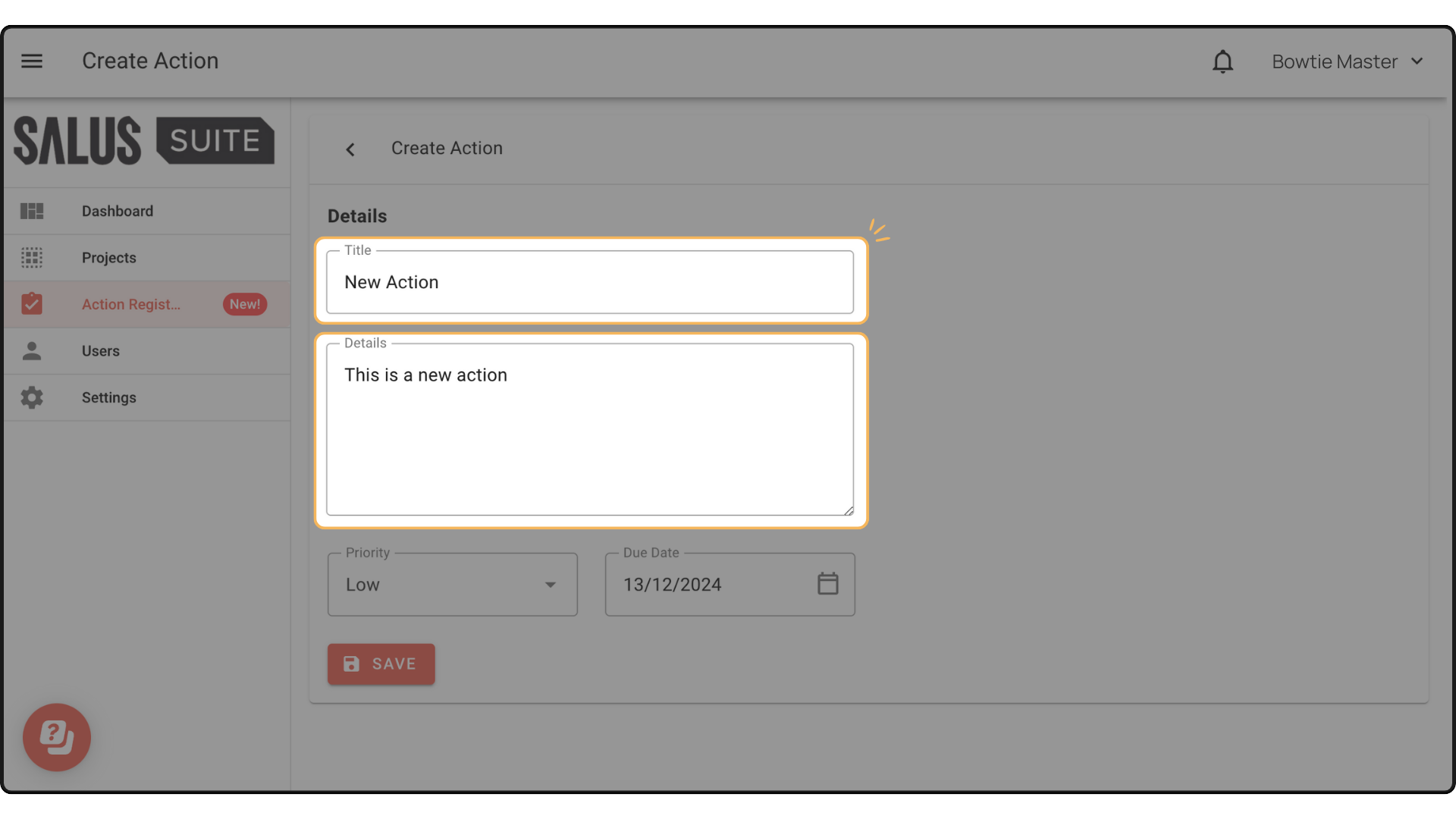
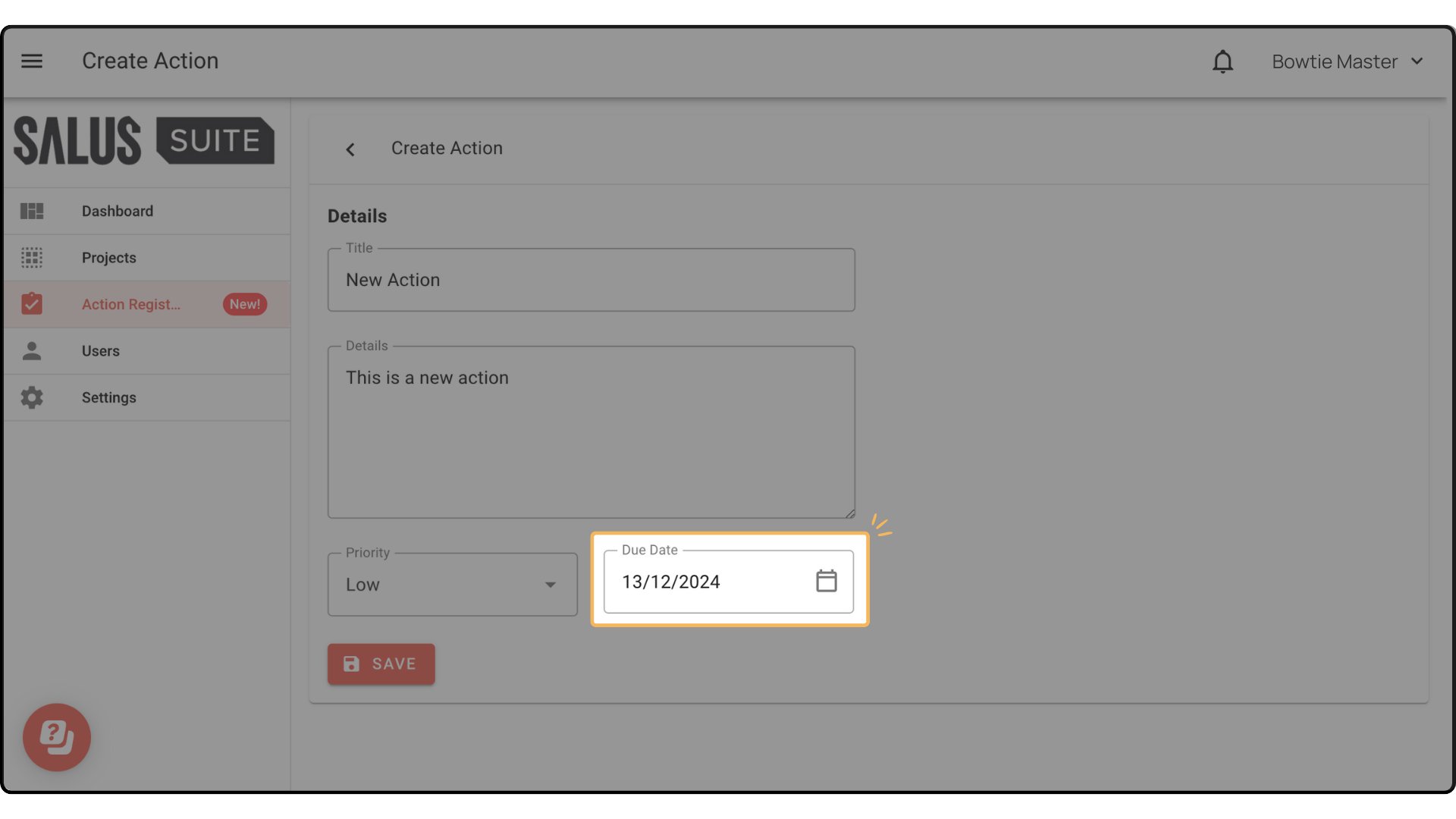
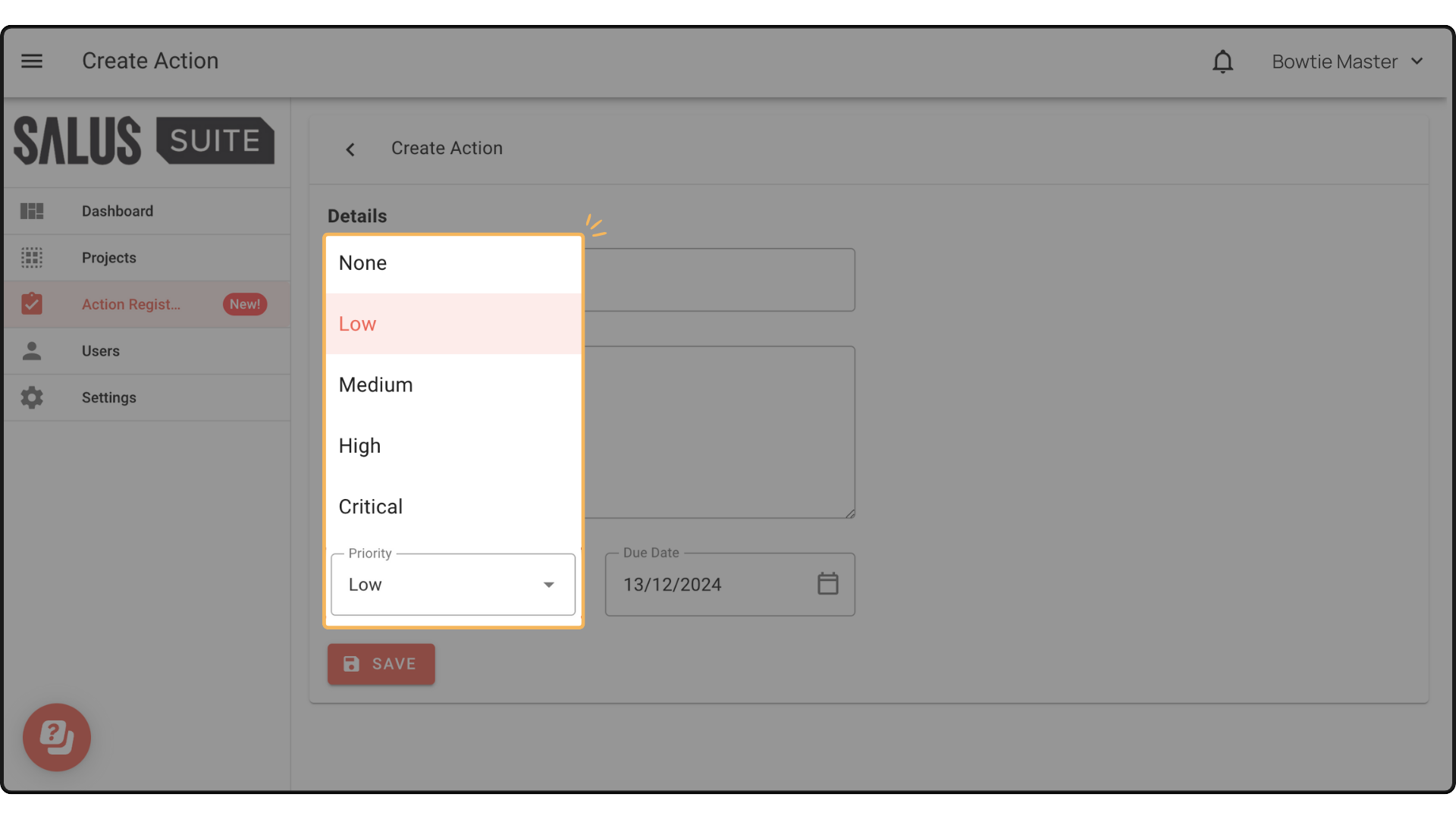
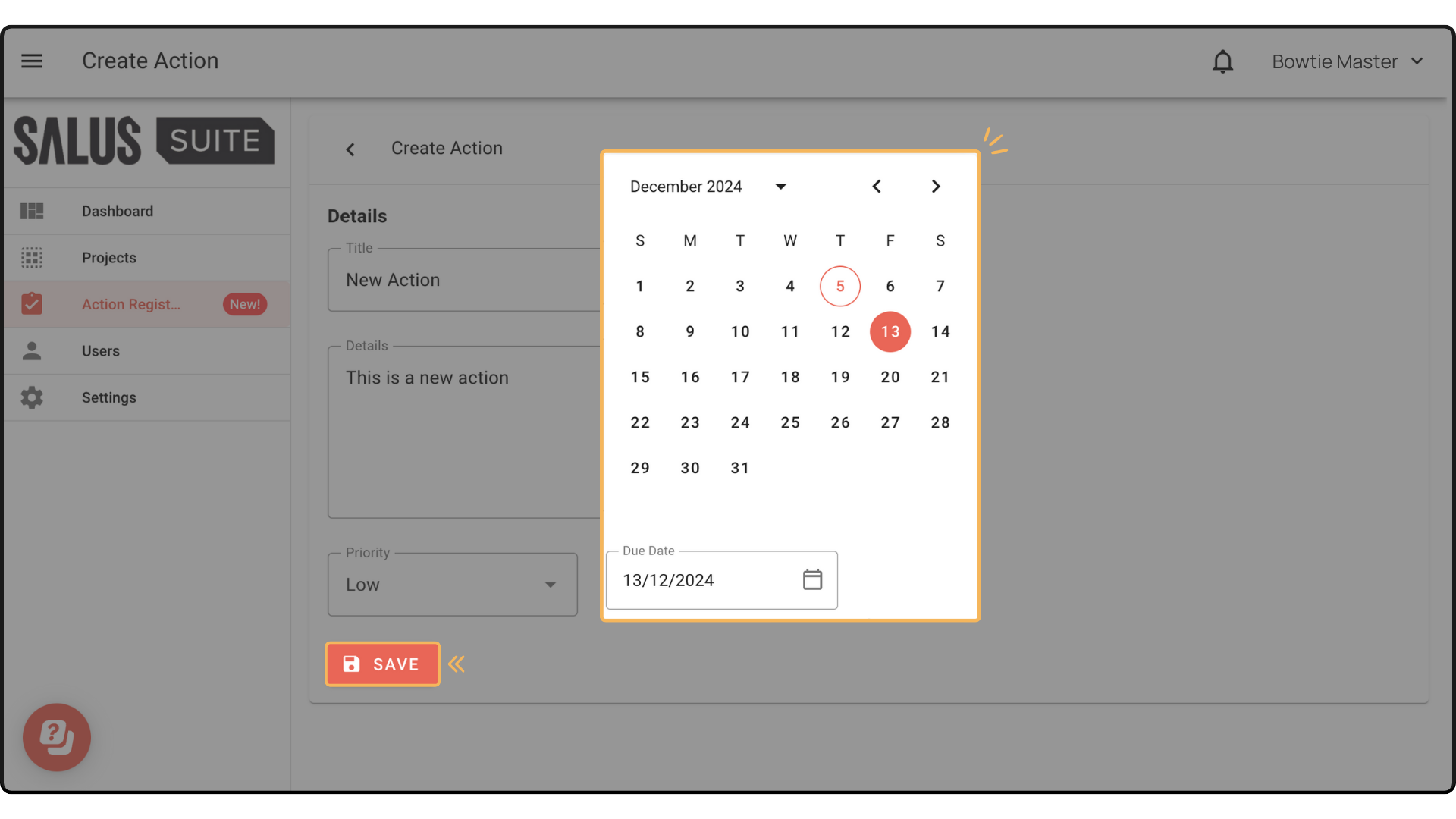
Step 2: Click + Action. A new window will appear where you can enter details of your Action, such as the Title, Details, and Due Date. You can also assign a priority level. Click Save.
Adding Assignees
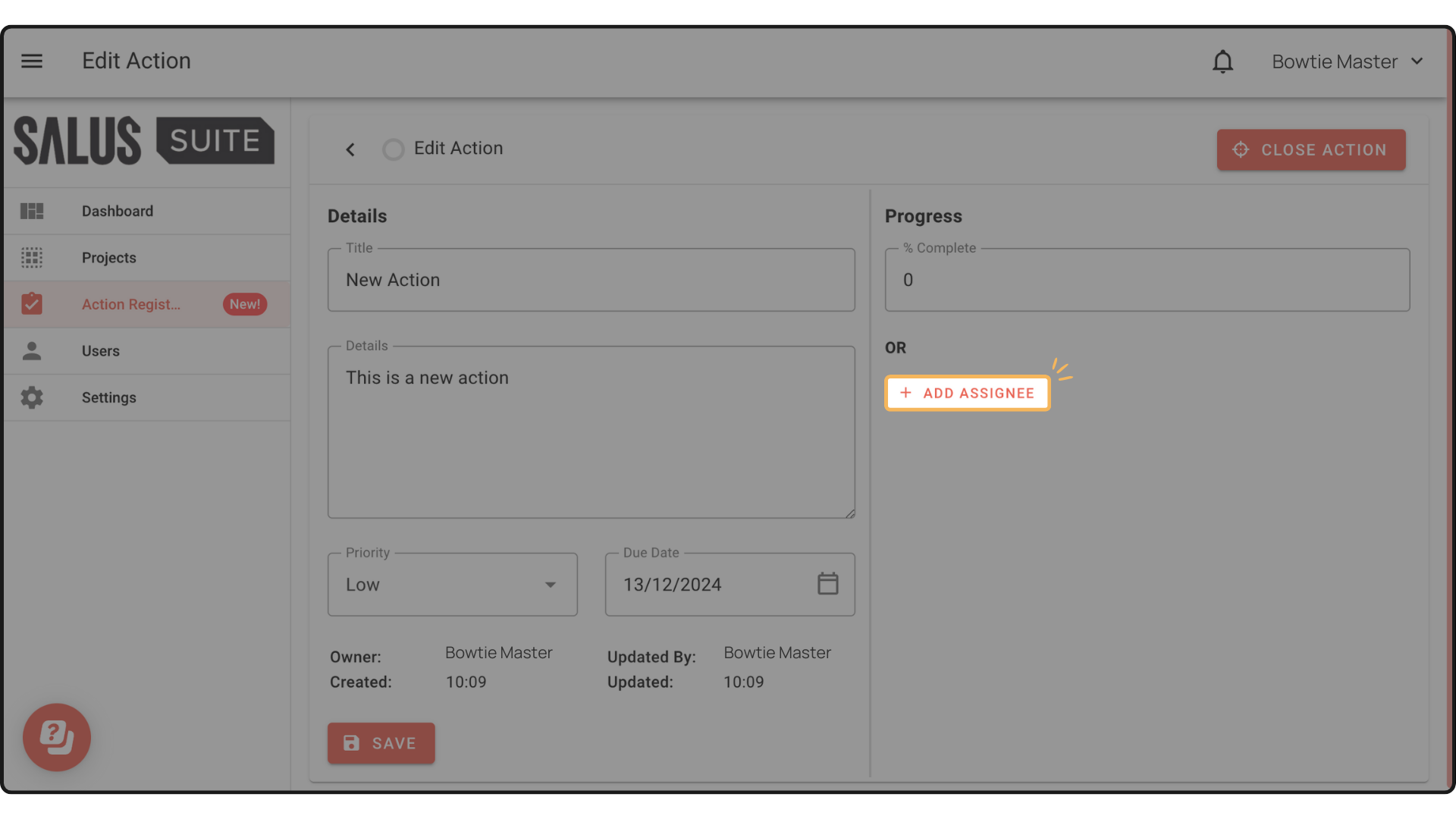
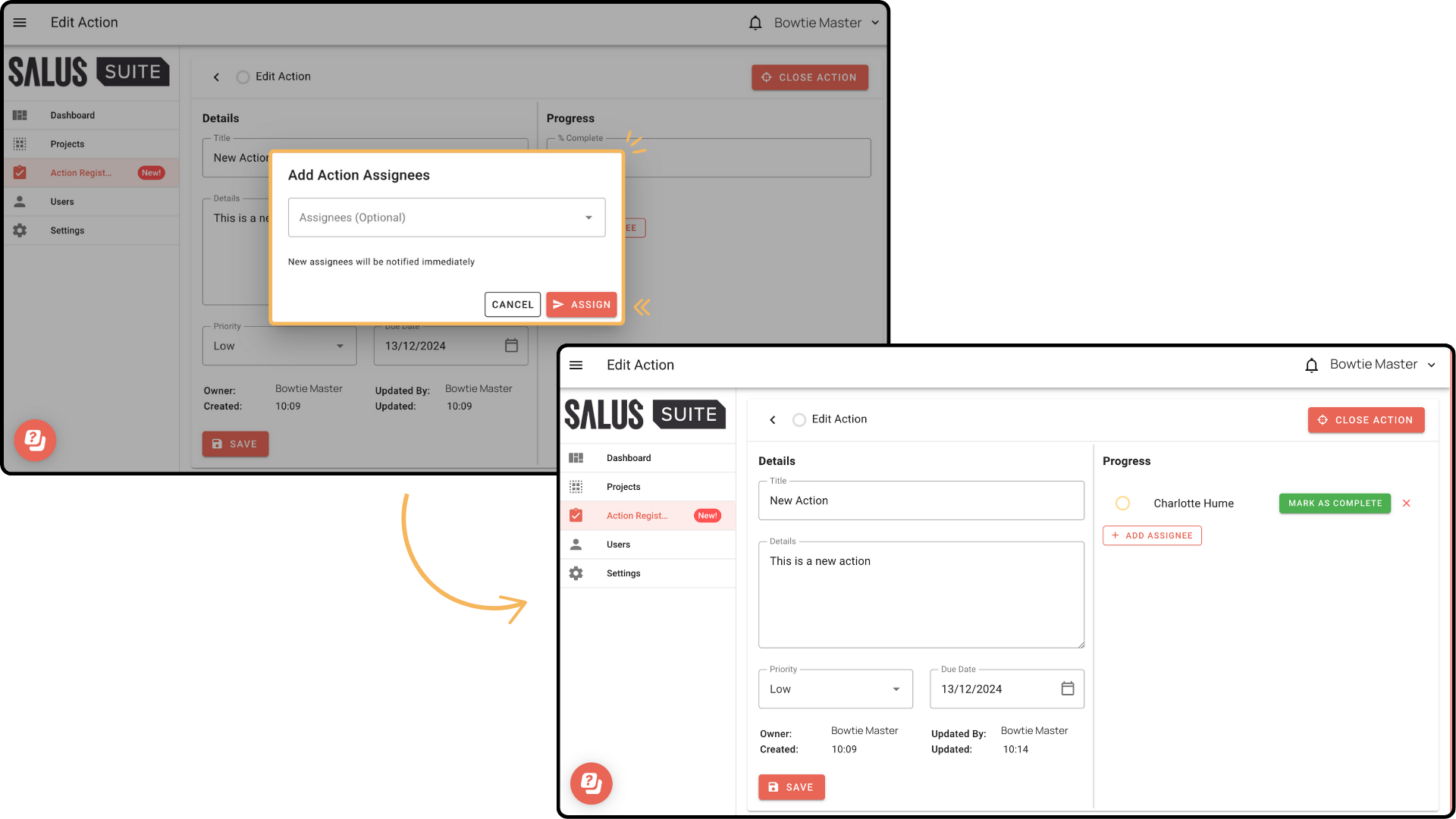
Step 1: Go to your existing action or create a new one. Click on +Add Assignee.
Step 2: In the pop-up, toggle the Assignees and select the User/s you wish to assign the action to. Click Assign. New assignees will be notified immediately.
Getting Assigned an Action
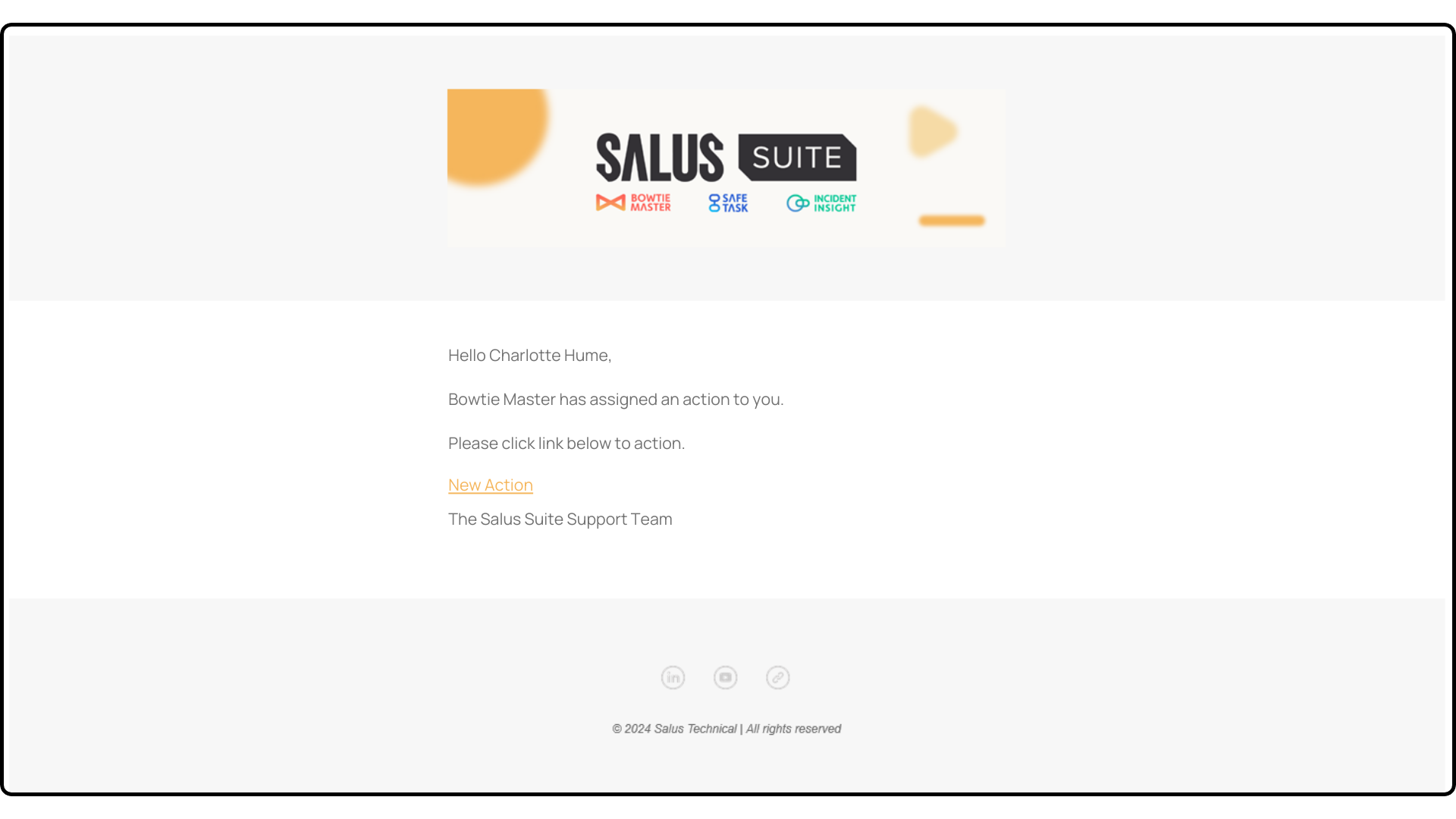
When you’re assigned an action in Bowtie Master, you’ll receive an instant notification via email and the Bowtie Master app.
This is how your email notification should look like:
To view and manage your assigned actions via the software, follow these steps:
Step 1: In the Actions Register tab, click on the Notification Bell icon.
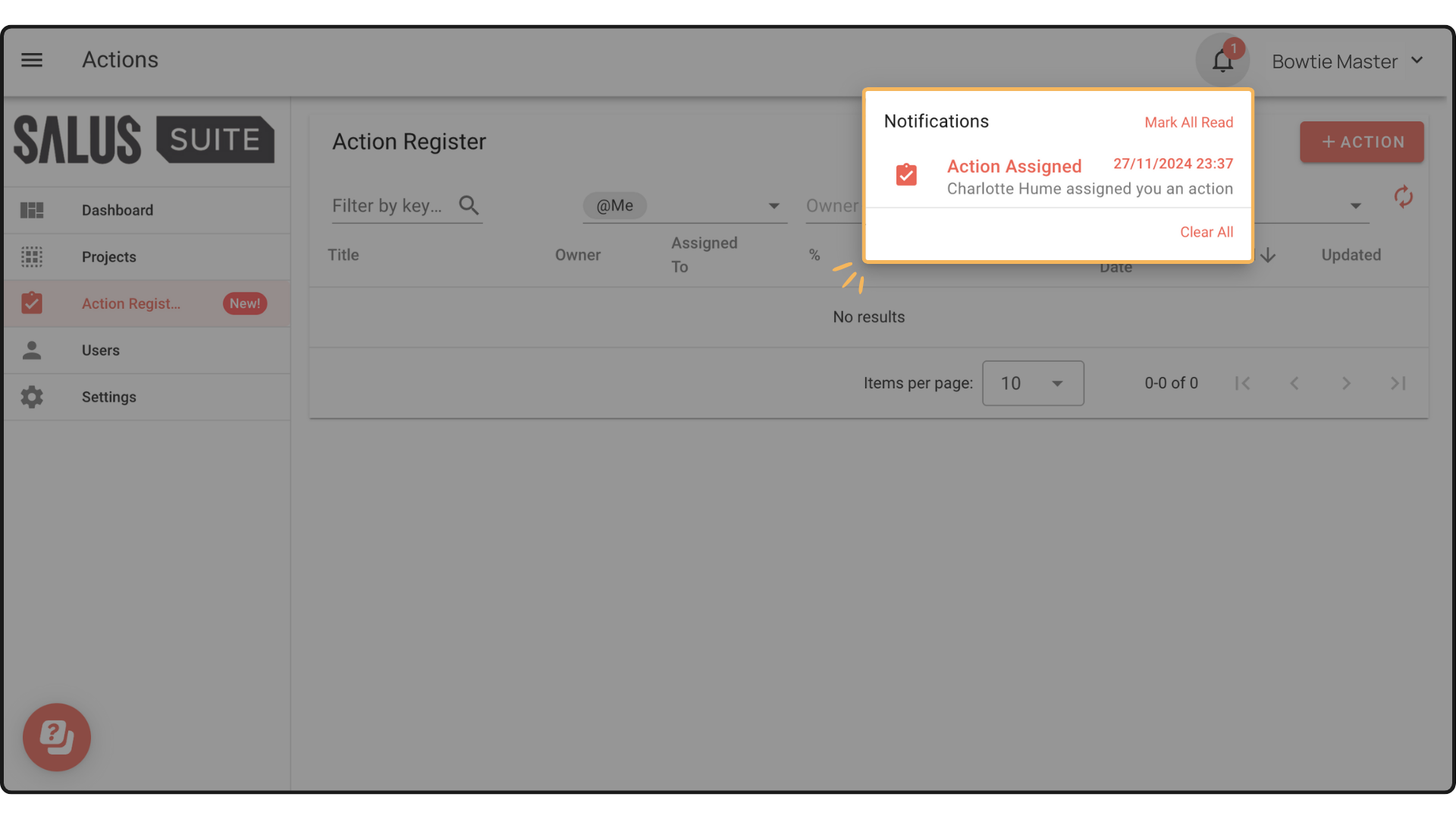
Step 2: From the notifications list, select the Action you want to view.
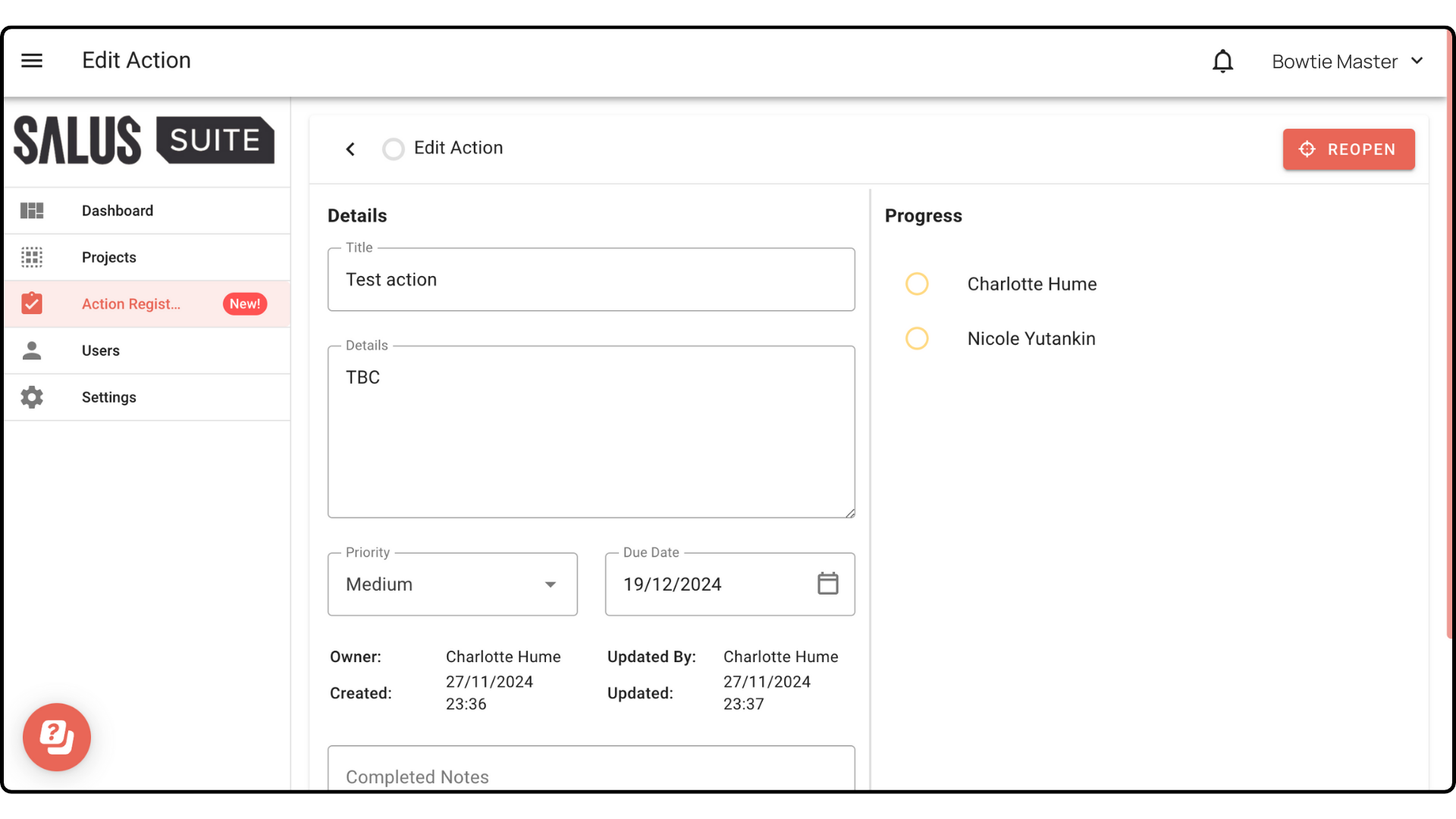
You can edit the action that has been assigned to you. You can update the title, details, priority, due date, and mark its progress.
Track the progress of actions
Bowtie Master allows you to track the progress of actions in two ways: by adding a percentage or marking them as complete or incomplete.
To add a percentage, use the % Complete slider below the progress bar to indicate the action’s progress. Note that you can only do this if you haven’t assigned any users to the action.
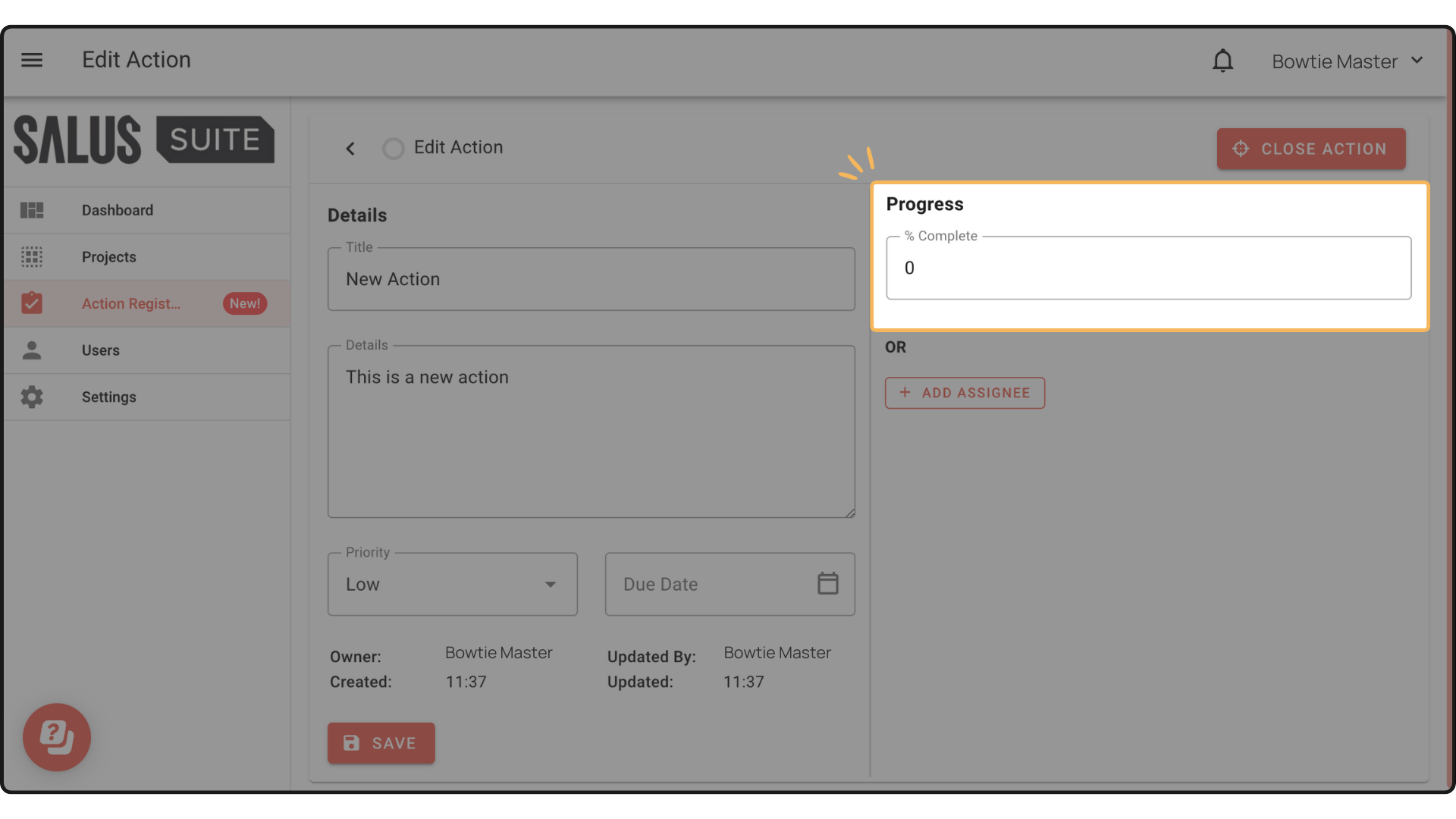
To mark an action as complete, click on the Mark as Complete button beside the Assignee. In the pop-up, you can add notes. Click ‘Mark as ‘Complete’. Your assignee’s action will be marked as completed.
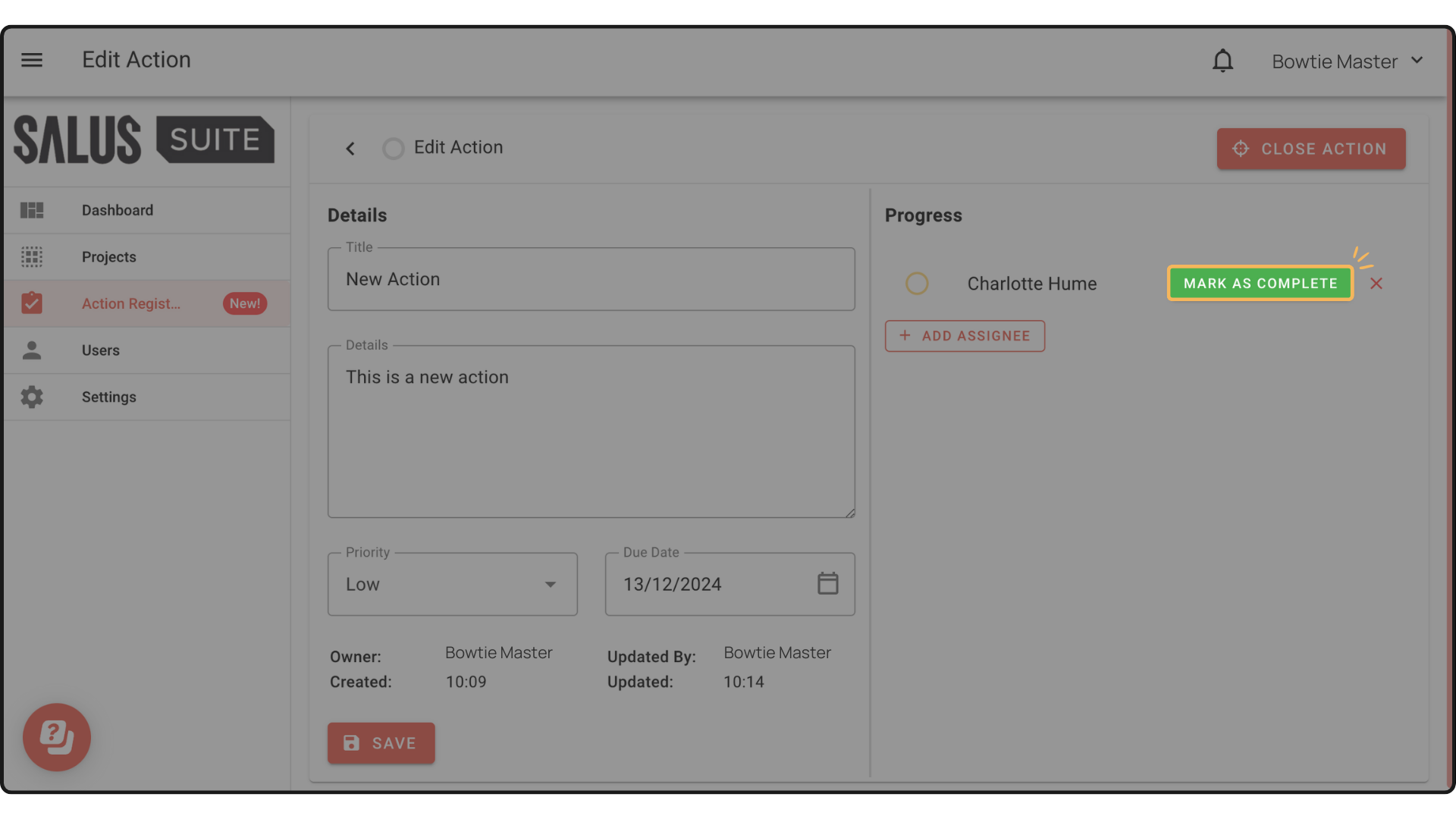
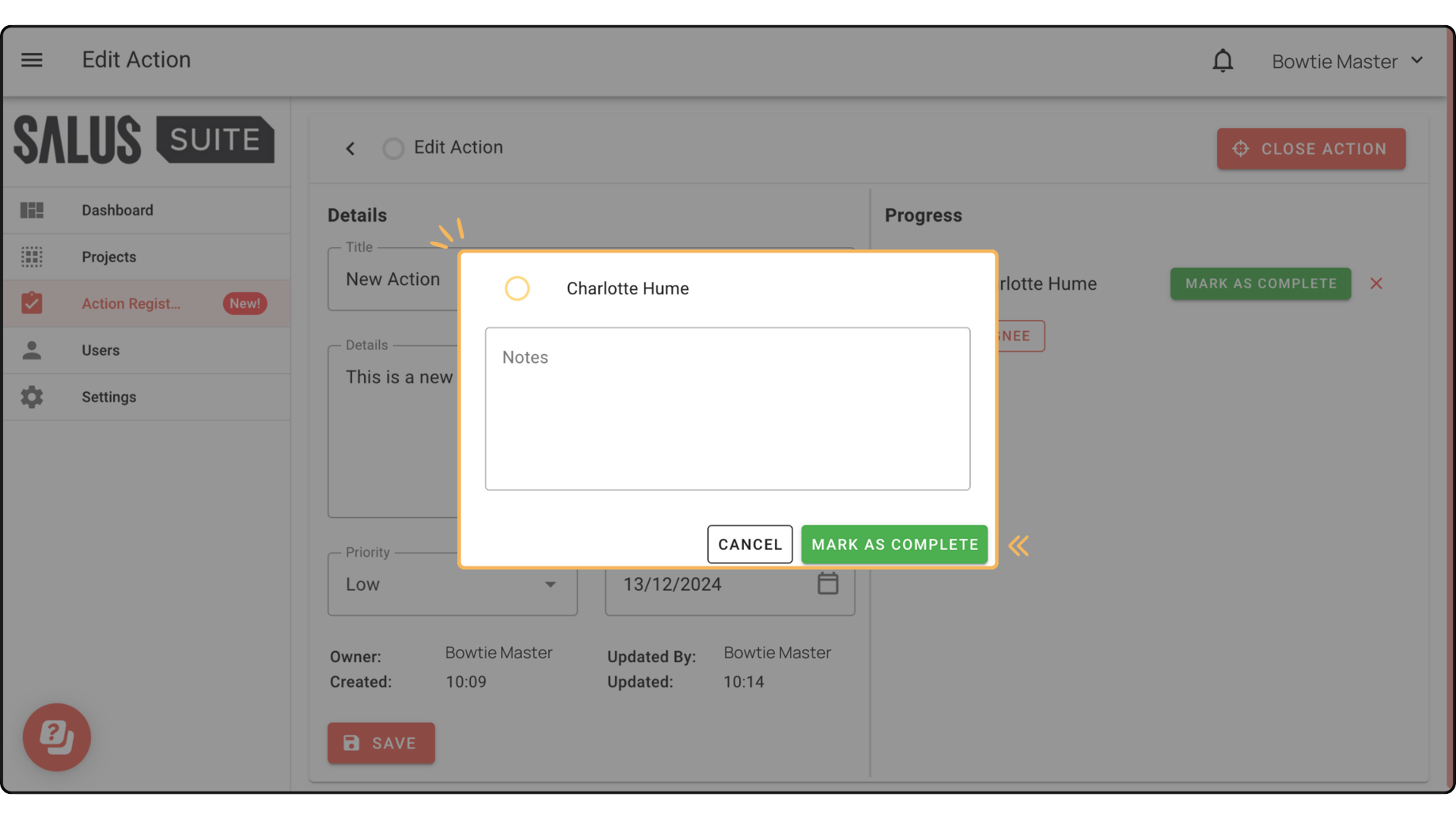
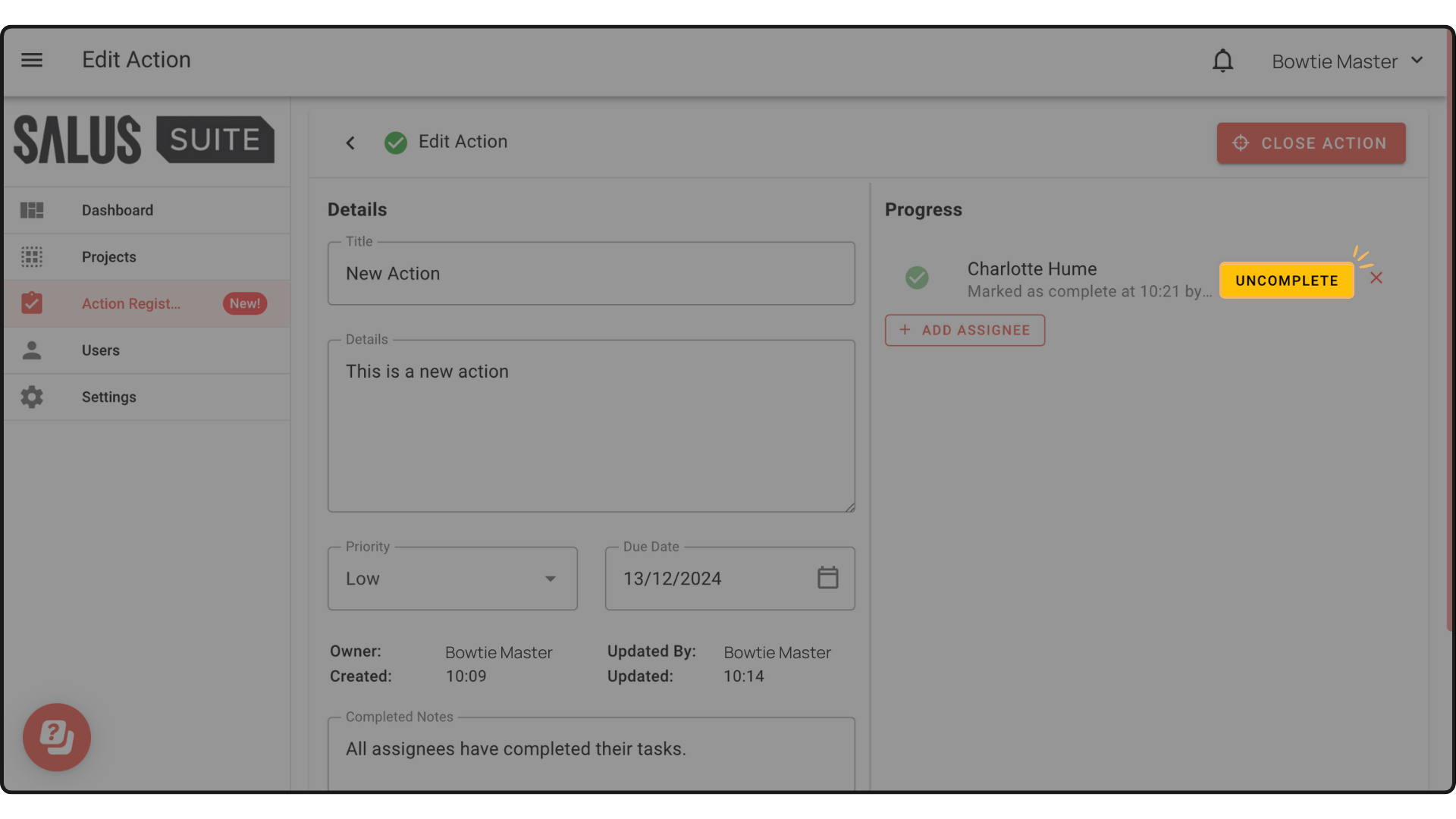
To revert an action to incomplete status, simply click the Uncomplete button beside the Assignee field.
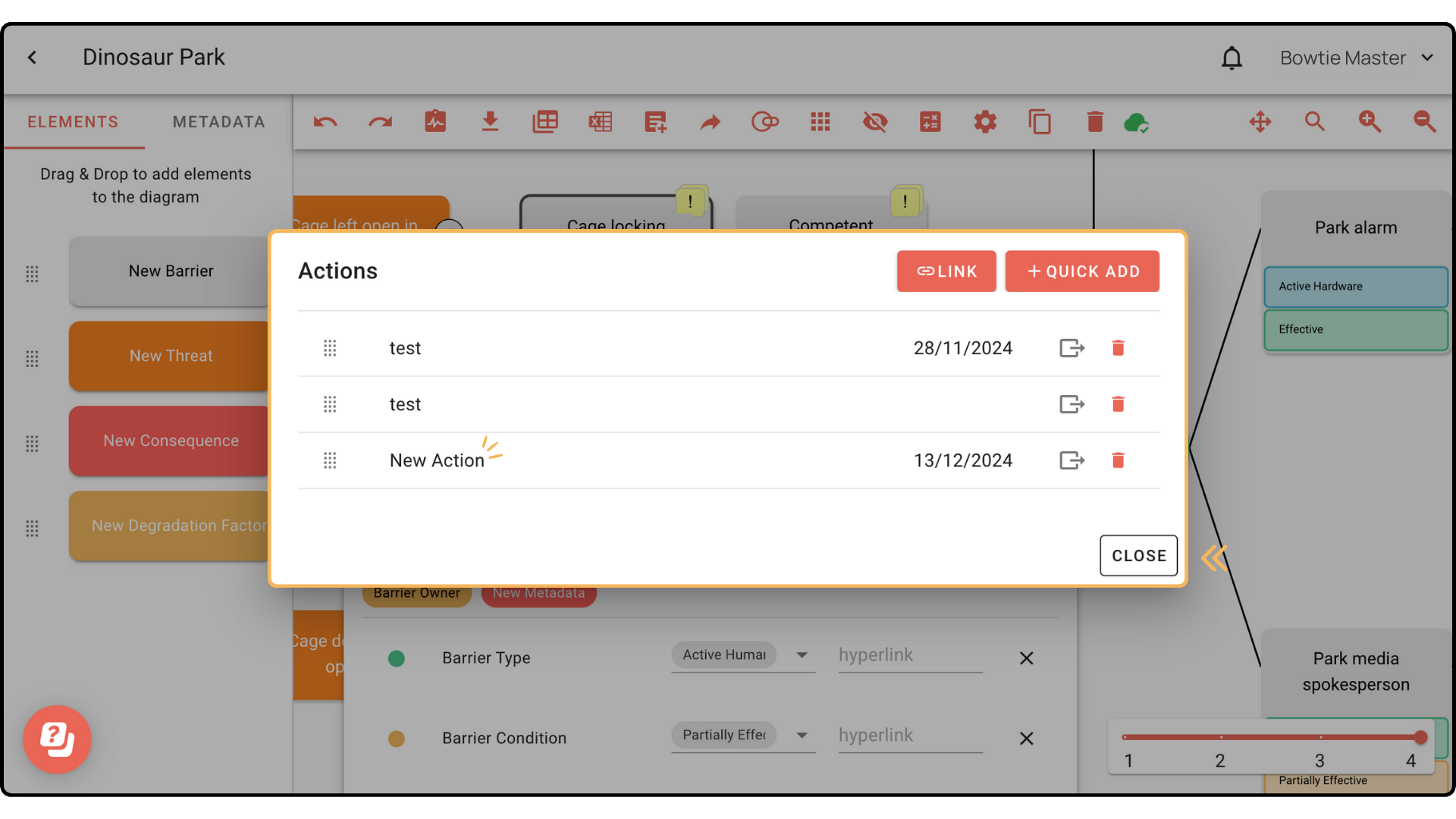
Closing and Reopening Actions
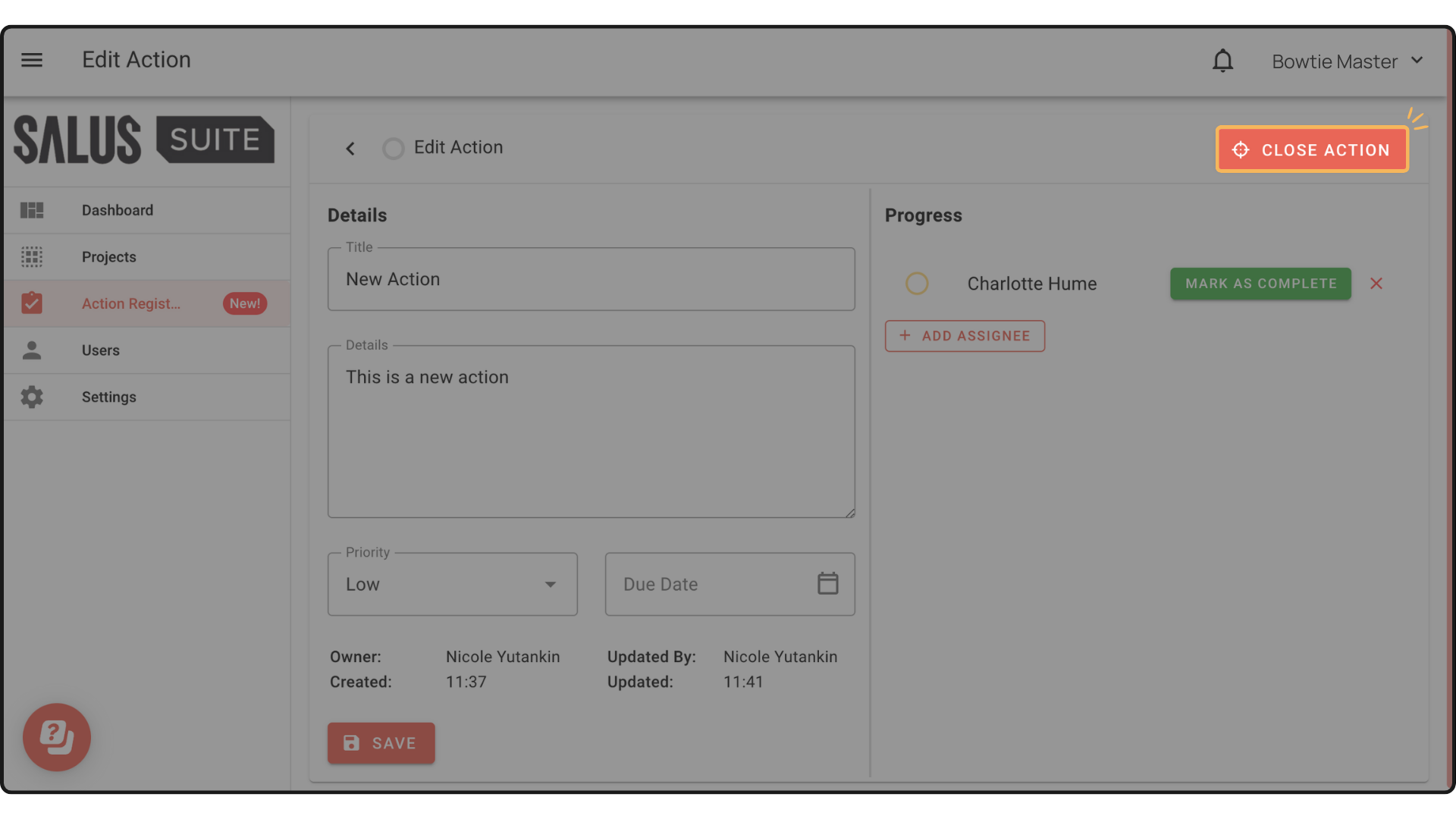
To close an action, simply click the Close Action button in the upper right corner of the Action. This will close the action.
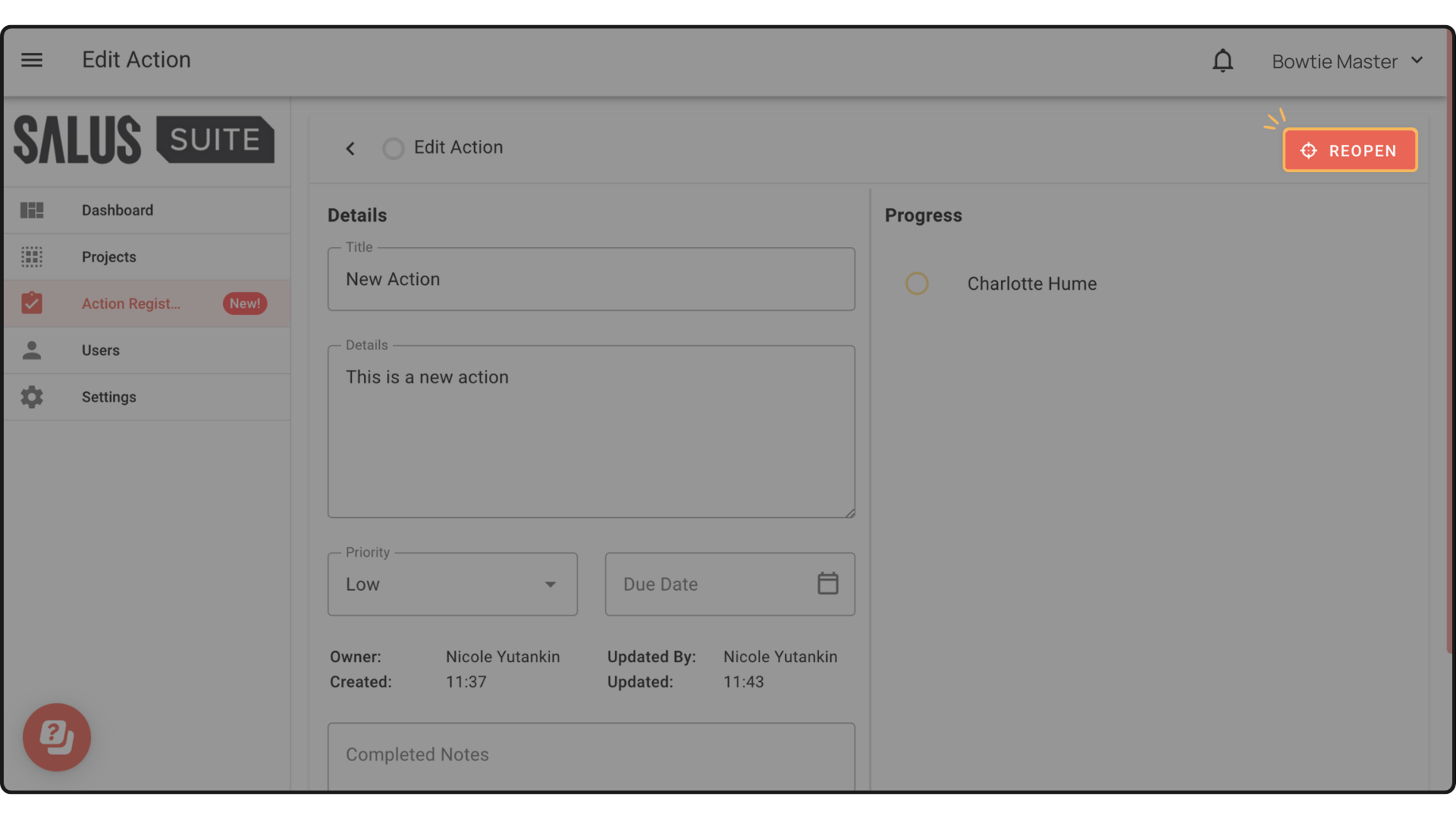
To reopen an action, click the Reopen button in the upper right corner of the Action. The action will be reopened and can be updated as needed.
Filter View
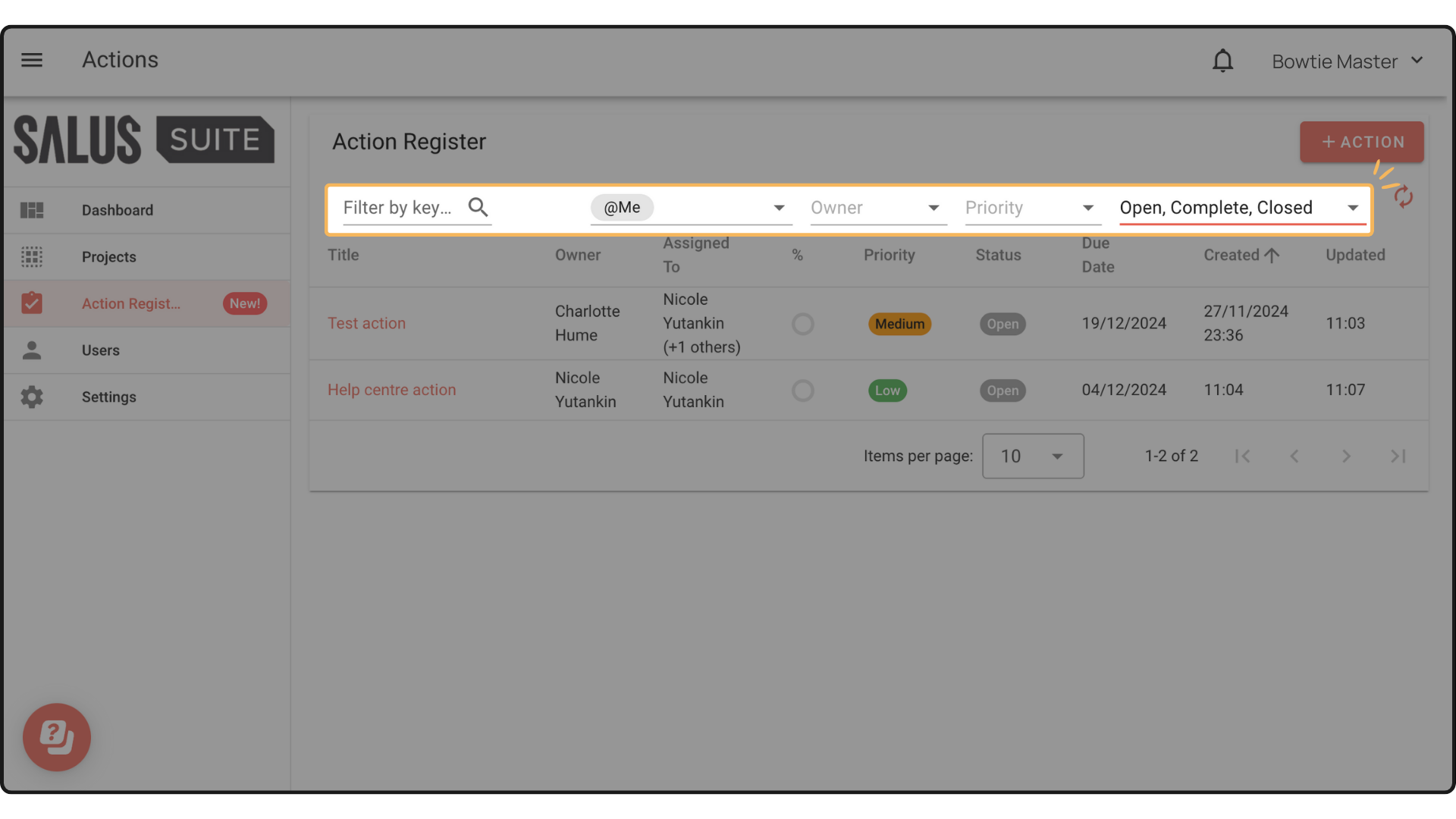
The Actions Register menu allows you to quickly filter actions based on specific categories: Assigned To, Owner, Priority, and Open/Complete/Closed.